Historical October 6, 2026 result. See the October 7 learner re-login follow-up below.
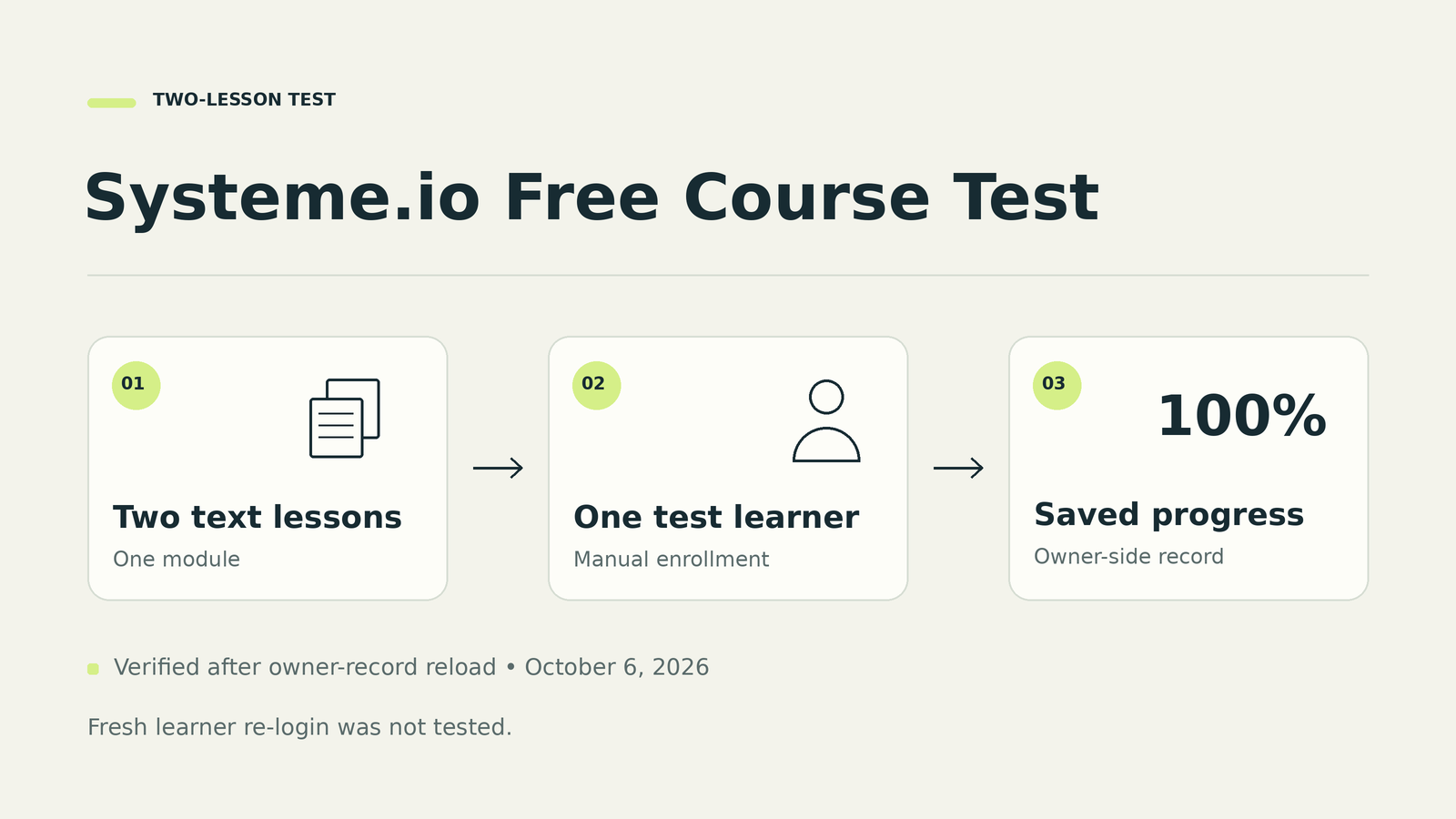
A small Systeme.io free course reached 100% progress in our October 6, 2026 test. We created one module with two original text lessons, manually enrolled one owner-controlled test learner, and checked the saved completion record. The recipient confirmed receiving the access email and reported completing the lessons. We independently verified 100% in the owner dashboard and again after reloading it.
That October 6 result came from recipient reports and the owner dashboard. Our October 7 follow-up directly checked the learner session, as described below. This walkthrough explains what we built, what the test established, and which checks you should finish before inviting an audience.
October 7 update: learner re-login and saved completion
On October 7, 2026, at 12:49–12:51 JST, we signed back in as the same owner-controlled test learner and directly opened both original text lessons. Both lesson completion checkmarks and overall 100% progress were visible. Lesson 2 showed a disabled ‘Completed’ control, and the saved completion state remained after reloading. The owner record also showed 100%, Active status and Full access. We did not reset progress or complete a lesson again.
This follow-up covers one manually enrolled test account in a two-text-lesson course. It does not verify video, paid checkout, refunds, drip schedules, automated enrollment, access changes or revocation, other devices, learning quality, or maximum student capacity.
Table of Contents
Start with a small Systeme.io free course
The test course taught one task: plan a useful lesson. It had one module, “Plan One Useful Lesson,” and two lessons: “Choose one small outcome” and “Make the outcome easy to check.” Full access was selected so there was no scheduled release to diagnose. No checkout, sales page, certificate or enrollment automation was included.
Use a similarly small fixture for your first check. Two short lessons give you something to navigate and complete without spending days making video. Choose content you own, label the course as a test, and decide which email address will receive access before adding a student.
Check the capacity in your account
Our Free account showed 0 of 1 courses and 0 of 500 students before setup. After enrollment, it showed 1 of 1 courses and 1 of 500 students. The course used the available slot, so another course would need a separate capacity decision.
There is still a student-limit discrepancy. Our account displayed 500, while the official pricing page’s “All plans include” section said students were unlimited when rechecked on October 6. Its comparison table had shown 500 during our October 5 browser review; the latest text extraction did not expose the table values. We have not resolved those statements. Check your own plan screen and obtain clarification before planning around a larger intake. See the official pricing page and our Free Plan Limitations guide.
Create and clean the two lessons
Systeme.io’s course-creation guide starts under Assets, then Courses. It describes creating the course with a name, domain, URL path and theme, adding a module, and adding lectures. It also calls out activation after construction. Our test followed that basic structure with English content and the default theme.
Give each lesson a visible result
Lesson 1 asked the learner to write one sentence describing a small teaching outcome. The pattern was: “After this lesson, [a specific learner] can [one observable action] using [a simple constraint].” A task such as writing a clear newsletter description is easier to check than a broad goal such as understanding marketing.
Lesson 2 asked the learner to write three yes-or-no questions for reviewing that outcome. For a newsletter description, those questions might check whether it names the reader, explains what the newsletter contains, and uses language someone outside the industry can understand. The learner could work in a private note; no answer submission or personal information was required.
Remove sample content before duplicating
The starting template contained placeholder material, including a video section and download links that were not part of our lessons. We removed those elements and a decorative background from this isolated test course. Leaving them in place would have suggested that resources existed when they did not.
The cleaned page used left-aligned text on white, with an 18 px body and 28 px line height. We saved and checked the first lesson in the owner preview, duplicated that cleaned layout, then replaced the second lesson’s title and body. Read both copies carefully: duplication saves layout work but can leave the wrong instructions behind.
Activate and preview before enrollment
Both lessons were activated separately, and the course was verified Active. The official guide warns that duplicated content starts inactive, so do not assume a copied lesson is ready for students. Our owner preview confirmed that the original text had saved and the layout was readable. Student visibility still needed its own check. Keep those two checks separate in your launch checklist.
Enroll one learner and check the email
Manual enrollment was enough for this exercise. It let us test the course without building another opt-in funnel or changing an existing automation. Choose a test recipient you control or someone who has agreed to participate, and explain that adding them will trigger a platform email.
Treat enrollment as an email send
The official manual-enrollment instructions say to select a course, add a student, choose an access type and save. Full access makes the whole course available immediately. The same instructions say that adding the student automatically emails login details and a course link. Check the address and course before saving.
We submitted one approved enrollment with Full access. The owner dashboard then showed one student, one enrollment for the intended course, Active status and 0% progress. We did not submit it again or resend the email. The recipient subsequently confirmed receiving the access email for the correct course and needing to set a password.
That receipt is recipient-confirmed evidence. We did not inspect message headers or establish inbox placement, delivery speed, reliability at scale or what a different recipient would receive. For your own check, confirm the course name and destination with the recipient. Keep password-setup links, account details and credentials out of screenshots or public notes.
Use the normal course link for the access check
On October 6, 2026, our owner preview was available, but the ordinary non-preview lesson URL in the cloud browser was signed out. It showed curriculum titles and a login prompt without the lesson body. An owner preview therefore could not stand in for the learner’s experience.
For a more complete launch test, open the received course link in the learner’s browser, finish any required account setup, and verify that both lessons open there. The learner in our test reported working through lesson 2 and pressing the completion control in their own session. That session was not independently inspected; the cloud learner tab remained at login. We used the owner record to check the resulting saved progress, as described next.
Verify saved progress and diagnose problems
After the learner reported completion, the owner student record showed 100% for the intended course. It still showed one enrollment, Active status and Full access. Reloading that record preserved the same result. No completion or reset control was operated during this verification.
The October 6 owner-side check established a saved 100% result. It did not establish an observed 50% intermediate step, individual learner checkmarks, or persistence after a fresh learner logout and login. The October 7 follow-up added direct evidence of both lesson checkmarks and saved completion after re-login and reload. We still did not observe a 50% intermediate step. Those distinctions matter when documenting a tutorial: record the screen you checked rather than inferring every step that could have produced it.
Expected behavior and actual findings
| Expected | October 6 finding | Fix or follow-up |
|---|---|---|
| Only real lesson resources | Template included sample video and download elements. | Removed sample elements, then saved and checked owner preview. |
| Course student shortcut opens the list | Filtered Students route redirected to the main Dashboard. | Opened the main Students list and located the existing record; no reenrollment. |
| Learner access is checked separately | Normal link was signed out; owner preview worked. | On October 7, we directly opened both text lessons after the same test learner signed back in. |
| Completion remains saved | Owner record showed 100% before and after reload. | On October 7, both lesson checkmarks and overall 100% progress were visible after re-login and remained after reload. |
These are the problems and limits encountered in this one run. The redirected shortcut is not evidence that every account has the same issue. If a route behaves unexpectedly, inspect the main student list before creating another enrollment or sending another access email.
Check what the test consumed
The post-enrollment plan screen showed the expected one course and one student. Contacts, funnels, funnel steps, rules, campaigns, workflows and tags retained their previous counts. That supports a narrow conclusion that this manual test did not consume additional capacity in those displayed categories. It is not an exhaustive audit of every external process. Existing marketing flows were not modified during the test.
Finish the checks that matter for your launch
Before sharing a real course, repeat the learner-side checks you need for your audience. Sign out and back in as the approved learner, confirm that both lessons remain accessible, and inspect completion in that fresh session. Check a phone or narrow viewport if learners will use one. Our October 7 follow-up checked re-login and saved completion for one test learner. We have not checked mobile usability or other devices.
If your launch depends on a form granting access, test that form and its enrollment action separately. A successful manual enrollment does not prove that an opt-in automation works. Likewise, add separate checks for paid checkout, refunds, drip schedules, video, downloadable files or certificates if you plan to use them. None of those features was exercised in this course test.
Systeme.io free course questions
Can I build a Systeme.io free course without recording video?
Yes for the two text lessons we tested. Each lesson contained an original explanation, a short task and self-check questions. We removed the unused sample video and download elements before enrollment.
Do I need an opt-in funnel for this test?
No. We used manual enrollment and Full access. That proved a narrower delivery path without testing form submission or an automated enrollment rule. Manual enrollment still sends an access email.
Does 100% progress prove that a learner mastered the topic?
No. Our verified result was a saved platform completion status. We did not assess submitted work or learning quality, and the participant was an owner-controlled test learner rather than a paying customer.
Should I choose Systeme.io instead of Kajabi after this test?
This exercise is too small to answer that. Use our Systeme.io vs Kajabi comparison for platform-selection questions, and our pricing guide for plan context. This walkthrough focuses on creating and checking one simple course.
The useful result
The practical outcome was a two-lesson course with recipient-confirmed access-email receipt, independently verified saved 100% progress on the owner side, and an October 7 learner re-login check that confirmed access to both text lessons and saved completion after reload. Start this small if you want to find setup problems before making a full curriculum. Then finish the launch-specific checks your audience will rely on.