Tag: Systeme.io

  • How to Set Up a Systeme.io Welcome Email Sequence on the Free Plan

    How to Set Up a Systeme.io Welcome Email Sequence on the Free Plan

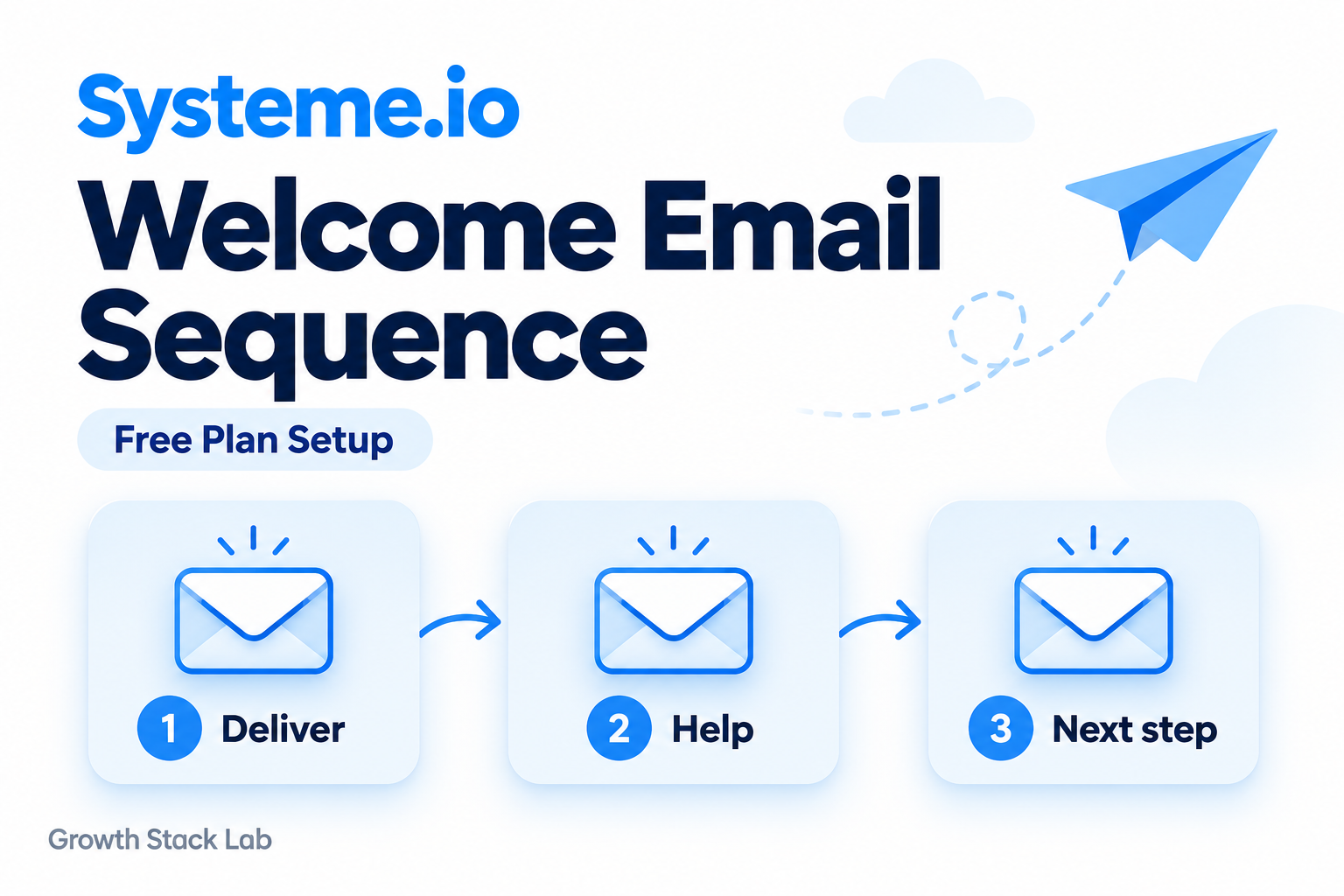
    A simple Systeme.io welcome email sequence can help a new subscriber use the resource they requested and decide what to do next. For a first setup, keep the scope small: one audience, one opt-in form, and one campaign containing three useful emails.

    This guide explains a proposed configuration using Systeme.io’s official documentation checked on October 5, 2026. Growth Stack Lab has not configured or tested this multi-email sequence. Our separate lead magnet funnel walkthrough documents a working PDF-delivery flow with a single automated email. That experiment does not verify the campaign described here.

    The design below is for new subscribers who explicitly agree to the follow-up. It is not a plan to enroll Growth Stack Lab’s existing checklist contacts or a claim that we currently run a newsletter.

    1. Check your available Free plan capacity

    The official pricing comparison, checked on October 5, lists these relevant Free-plan allowances:

    • Up to 2,000 contacts
    • One email campaign
    • One automation rule
    • Unlimited email sends
    • Three funnels with 15 funnel steps in total

    This proposed setup uses one campaign and one rule connected to an opt-in page. It does not require a tag or a branching workflow. One campaign can contain a sequence of email steps; the campaign allowance is not a one-email allowance.

    Check what your account already uses before creating anything. If your only campaign or rule supports a working process, do not delete it to make room. The Free-plan limitations guide explains the broader capacity decision.

    The vendor’s pricing FAQ describes the limits more loosely than its detailed table. Use the table and your account’s actual allowance when planning this setup. Unlimited sends do not remove the campaign or automation limits.

    2. Confirm the audience and delivery promise

    Write down exactly what the signup offers. Someone requesting a file should not unexpectedly receive a promotional series. Use this design only for subscribers whose signup clearly includes the intended follow-up, and retain evidence of that choice.

    For example, a signup form could offer the resource plus two practical emails about using it. State that promise clearly before the person subscribes, then keep the messages within it.

    Do not bulk-enroll older checklist contacts simply because their addresses appear in the CRM. Do not override an unsubscribe to make a sequence work.

    Also decide which email delivers the resource. In the new-build design here, the first campaign email owns that job. A parallel Send email action containing the same resource could produce an unnecessary second welcome message. An existing delivery flow needs a deliberate transition plan before any change; this guide does not document a tested migration.

    Have a ready opt-in page, resource link, and configured sender. For the sender prerequisite, see our domain authentication guide.

    3. Plan your Systeme.io welcome email sequence

    Prepare all three messages before connecting the signup form. The following is an editorial example, not a proven conversion formula or an existing GSL campaign.

    Email 1: Deliver the resource

    Suggested subject: Your checklist and where to start

    Include the promised download link near the beginning. Briefly explain what the reader will receive next and why it relates to the resource. Avoid making them read a long introduction to find the file.

    For a tool-selection checklist, the useful first action could be identifying one business task that currently takes too much time. Keep the email focused on opening the resource and choosing that task.

    Illustrative timing: five minutes after campaign enrollment. This is a sample setting, not a guaranteed arrival time. If the form promises instant access, provide a working thank-you-page download rather than depending on that email’s arrival.

    Email 2: Help the reader use it

    Suggested subject: Choose one task before adding another tool

    Give one concrete exercise. For example, ask the reader to list the tools they already use for their chosen task and identify what is missing. Explain that they may discover an existing tool already covers the need.

    This message should make the download more useful. It does not need a product pitch or several competing links.

    Illustrative timing: one day after Email 1.

    Email 3: Offer a relevant next step

    Suggested subject: What to set up next

    Help the reader make a small decision. Someone without a signup flow could work through a funnel tutorial. Someone with a working flow could check whether their current plan supports the next process they want to build.

    Choose one next step that fits the signup promise. Do not insert an unrelated promotion merely because the sequence has reached its last email.

    Illustrative timing: two days after Email 2. These intervals are starting assumptions to review against the audience’s expectations, not evidence of an optimal schedule.

    4. Create the campaign and message steps

    According to the official campaign setup guide, open Emails, select Campaigns, and choose Create. Name the campaign, select the sender address, add a description, and save.

    Open the campaign and create its first email. Enter the subject and sender details, then choose an editor and template. Finish and save the content. Repeat for the remaining messages.

    Choose your editor before composing: the documentation warns that switching editors loses the content being edited.

    Use names that make the sequence easy to inspect later, such as Resource welcome, Apply the checklist, and Choose the next step. Distinct subjects also help you identify the correct message during a future test.

    5. Activate the emails and check their order

    Saving content does not activate a campaign email. The documented route uses its three-dot menu and Activate to configure sending conditions. For later emails, select the preceding message and set the delay from that message’s delivery.

    For the illustrative sequence, use only the simple intervals above initially. Optional time and weekday restrictions add conditions that must also be satisfied. Refer to the activation and timing instructions before combining them.

    6. Connect the intended opt-in form

    The official campaign enrollment instructions describe a rule using Funnel step form subscribed as the trigger and Subscribe to campaign as the action. Select the intended opt-in page and the campaign you prepared, then save the rule.

    Keep an unfinished campaign disconnected from a live signup path. Before saving the connection, inspect the page name, destination campaign, and any existing delivery actions. The thank-you page is not the opt-in page where the subscriber enters their address.

    The rule starts enrollment; the campaign holds the email sequence. If you need conditional branches or several entry paths, that is a broader design decision covered by our automation review.

    7. Verify the journey before relying on it

    Systeme.io’s test-email guide explains Save and test with a verified test address. It also notes that substitution variables are inactive in test emails. A preview can help check the content, but it does not establish that the form enrolls a subscriber or that the sequence follows its intended timing.

    Before any real signup test, confirm that it uses a mailbox you control and a path that will not enroll real subscribers accidentally. If your Free-plan capacity cannot safely accommodate a separate test setup, pause rather than repurposing a live campaign without a plan.

    Record the following for the full journey:

    • The signup event, time, and time zone
    • The intended campaign and evidence of enrollment
    • Each message’s expected send window and actual receipt time
    • The resource link and whether it opens the correct file
    • The unsubscribe action and resulting contact status

    These are suggested checks. No results have been recorded for this proposed sequence. Avoid shortening delays in a campaign with real subscribers just to finish a test sooner.

    If a message is missing, use our emails-not-sending checklist to trace the failure before changing unrelated settings. A successful receipt in one mailbox also does not guarantee future inbox placement.

    8. Treat later edits as changes to a live process

    A completed sequence still has enrolled contacts to consider. Systeme.io’s campaign scenarios guide says appending a final email can send it to contacts who remain subscribed. If the delay since their preceding email has already elapsed, the new message can become due immediately.

    Before adding a follow-up, inspect who may receive it and whether it fits their original signup promise. Do not treat a live campaign as an empty draft simply because its last scheduled message has already been sent.

    Frequently asked questions

    Can the Free plan support this sequence?

    The documented allowances support a simple design using one campaign and one rule, provided that capacity is available in your account. This article is documentation-based; GSL has not tested the proposed sequence.

    Do I need a separate rule for every email?

    In this design, one rule enrolls the subscriber in the campaign. The campaign contains the individual email steps. There is no reason to create three separate enrollment rules for the three messages.

    Can I add existing checklist subscribers?

    Do not assume permission from their presence in the contact list. This guide is scoped to new subscribers who agree to the stated follow-up. It does not authorize enrolling GSL’s older checklist contacts.

    What if my existing rule already delivers the PDF?

    Keep the working delivery process intact until you have reviewed capacity, audience permission, and the transition. Adding campaign enrollment without deciding which email owns delivery can duplicate the welcome. This article is not a verified migration procedure.

    Start with one clear subscriber promise

    A useful welcome sequence gives readers the resource they requested and helps them take a relevant next step. Prepare those messages first, check capacity, and verify the complete journey before describing your automation as working. Add complexity only when a real reader need justifies it.
  • Systeme.io Emails Not Sending? A Troubleshooting Checklist

    Systeme.io Emails Not Sending? A Troubleshooting Checklist

    If you are searching for Systeme.io emails not sending, start by identifying where the message stopped. An email that never entered a campaign needs a different investigation from a message waiting for its scheduled time or one that reached a spam folder.

    This checklist focuses on automated welcome emails and campaigns, with a separate check for account-level sending holds. Work through it with one test contact you control before changing anything that affects your subscribers.

    Evidence note: The troubleshooting steps below are based on Systeme.io documentation checked on October 2, 2026. Growth Stack Lab has separately tested a lead magnet funnel and a domain-authenticated message delivered to Gmail. We have not reproduced every failure scenario in this guide or measured long-term inbox placement.

    Systeme.io Emails Not Sending? Start Here

    • No contact or campaign enrollment: inspect the form, trigger, and selected campaign.
    • Contact enrolled, but no message: inspect email activation, timing, and contact status.
    • Sending is pending: check for a platform review or account notice before trying again.
    • Message arrived outside the main inbox: investigate delivery and authentication separately from enrollment.

    Write down the exact recipient, message subject, and test time, including the time zone. Without those details, it is easy to compare different attempts and mistake an older email for the result of your latest change.

    1. Check the Sender and Sending Domain

    In Settings > Emails, check the exact address used by the affected email. Systeme.io documents a confirmation process under Verified email addresses: add the address, follow the confirmation email, and finish confirmation. The resulting status should be Verified. See the official sender confirmation instructions.

    Domain authentication is a separate check. Systeme.io says it is required for sending and supplies three CNAME records plus a DMARC record. Compare the values shown in your own account with your DNS provider; do not copy another account’s identifiers. Follow the official domain authentication guide if this step is incomplete.

    For a worked example, our Systeme.io domain authentication test compares Namecheap DNS with Systeme.io and shows SPF, DKIM, and DMARC PASS in one received Gmail message. That proves authentication for that message, not that every future email will reach every inbox.

    If both checks already pass, keep investigating the affected campaign. Replacing working DNS records without evidence can introduce a second problem while leaving the first one untouched.

    2. Trace the Contact Into the Campaign

    A person being in your contact list is not, by itself, proof that the intended campaign enrollment occurred. Start with the event you expected: a specific opt-in form submission, a purchase, or a newly added tag.

    For rule-based campaign enrollment, inspect the trigger and the Subscribe to campaign action together. Confirm the selected page or tag and the destination campaign. Systeme.io specifically notes that a tag-based trigger requires the tag to be added after the rule is configured. An old tag is not a fresh event. Source: automating an email sequence.

    Also distinguish a single-email action from campaign enrollment. The automation rules documentation describes a Send email action; choosing that action does not mean you selected Subscribe to campaign. Compare what you configured with what you actually intended.

    Record any recent task history before repeated experiments. The same documentation says automation rule task history is retained for one month and describes a 20-activation limit for the same contact. Reusing one address indefinitely can therefore make a test misleading.

    For the broader distinction between simple rules and workflows, see our Systeme.io automation review.

    3. Check Email Activation and Timing

    Open the campaign and inspect the affected email itself, not just the campaign name. Saving the content and activating a campaign email are separate steps. The official process uses the email’s three-dot menu, then Activate, to configure sending conditions.

    Check which preceding email is selected, the delay, and any allowed sending hours or weekdays. All configured conditions must be satisfied. A delay expiring is not enough when a later time or day restriction still applies. See campaign activation and delay settings.

    A successful editor test email is useful, but it does not establish that a real signup triggers enrollment and follows the sequence. For diagnosis, write down the next eligible send time from the configured conditions, then compare it with the actual attempt. Do not shorten a live sequence just to speed up your test.

    4. Check Contact Status and Sequence History

    According to Systeme.io’s campaign scenarios guide, unsubscribed or bounced contacts can remain enrolled and progress through the sequence without receiving emails. Enrollment alone is therefore not proof that a contact is eligible to receive the message. Do not override an unsubscribe to troubleshoot.

    Sequence edits can also explain differences between contacts. An email inserted into an earlier or middle step is not sent retroactively to people who have already passed that point. Newly appended emails can become due immediately when their delay has already elapsed since the preceding email.

    The same guide warns that deactivating all campaign emails and reactivating them can resend messages to enrolled contacts. Avoid treating that as a harmless reset. Inspect the affected contact’s progress and use a separate test setup, within your available plan limits, for changes that could send duplicate messages.

    5. Investigate Pending Sends Before Resending

    Systeme.io lists several reasons for a sending hold: checks on recent accounts, review after a contact import, content review, and checks during high-volume newsletter sending. These are distinct from a campaign delay.

    Its official pending-email troubleshooting page describes new-account checks that can take from minutes to six hours. That window applies to the documented verification process; it is not a universal delivery promise for every pending message.

    Read any account notice and preserve the pending status and timestamp. Do not repeatedly resend the same message or create additional broadcasts to force it through. If the documented situations do not explain the hold, contact support with the details rather than guessing that a paid upgrade will resolve it.

    6. Separate Sending From Inbox Placement

    If the message reached Spam or another inbox tab, it was not simply “never sent.” Search your test mailbox for the exact subject and sender, and record where you found it. Keep that observation separate from what the sending platform reports.

    Systeme.io’s deliverability guidance identifies authentication, list quality, sending reputation, and bounces or spam complaints as relevant factors. Only send to people who agreed to receive your emails. Authentication helps establish the sender’s identity; it does not guarantee main-inbox placement.

    For a received Gmail test, inspect Show original and note the authentication results. Repeat testing across providers only when you can actually access those test inboxes. Do not generalize one Gmail result into an Outlook, Yahoo, or list-wide success claim.

    Run One Controlled Test

    The following is a suggested diagnostic procedure, not a claim that Growth Stack Lab has reproduced each issue above. Use a mailbox you own and a test path that will not enroll real subscribers or duplicate their emails.

    • Expected: write down the entry event, target campaign, message subject, and earliest eligible send time.
    • Actual: record contact creation, enrollment or task evidence, sending status, receipt time, and mailbox location separately.
    • Fix: change only the setting supported by the evidence, then repeat the same path with an appropriate test contact.

    Keep the original observations when a test fails. “No email seen” is less useful than “form submission at 10:00; contact created; no matching campaign enrollment found.” The second description tells you which connection to inspect next.

    For an example of checking the complete reader journey, our lead magnet funnel test follows signup through delivery, PDF access, and unsubscribe. It is a separate verified workflow, not a test of every troubleshooting case here.

    Prepare a Useful Support Request

    Still dealing with Systeme.io emails not sending after these checks? Send support a compact record of the problem. Include the campaign and email names, the affected test contact, the trigger, the exact time and time zone, the visible status, and the difference between expected and actual behavior.

    Add relevant screenshots with unrelated contacts hidden. Never include a password, login code, or API key. Share a recipient’s address only through the official support channel when needed for the investigation, not in a public forum. Describe changes already attempted so support does not have to reconstruct them.

    Systeme.io Emails Not Sending: FAQ

    Why are my Systeme.io emails not sending with a verified domain?

    Domain verification answers an authentication question. It does not establish that the correct form event occurred, the intended campaign was selected, or the message became due. Trace those steps separately.

    Should I send the message again while it is pending?

    Do not repeatedly resend it. First check the account notice and the documented review situations above. A pending message needs diagnosis, not additional copies.

    Does one successful test prove my setup is fixed?

    It proves only what that test actually covered. A receipt in your own mailbox is useful evidence, but check the intended trigger and full journey before describing an automated workflow as verified.

    Next Step

    When investigating Systeme.io emails not sending, find the first missing piece of evidence. Correct that step and test again before touching unrelated settings. For the broader feature and suitability assessment, read our Systeme.io email marketing review.

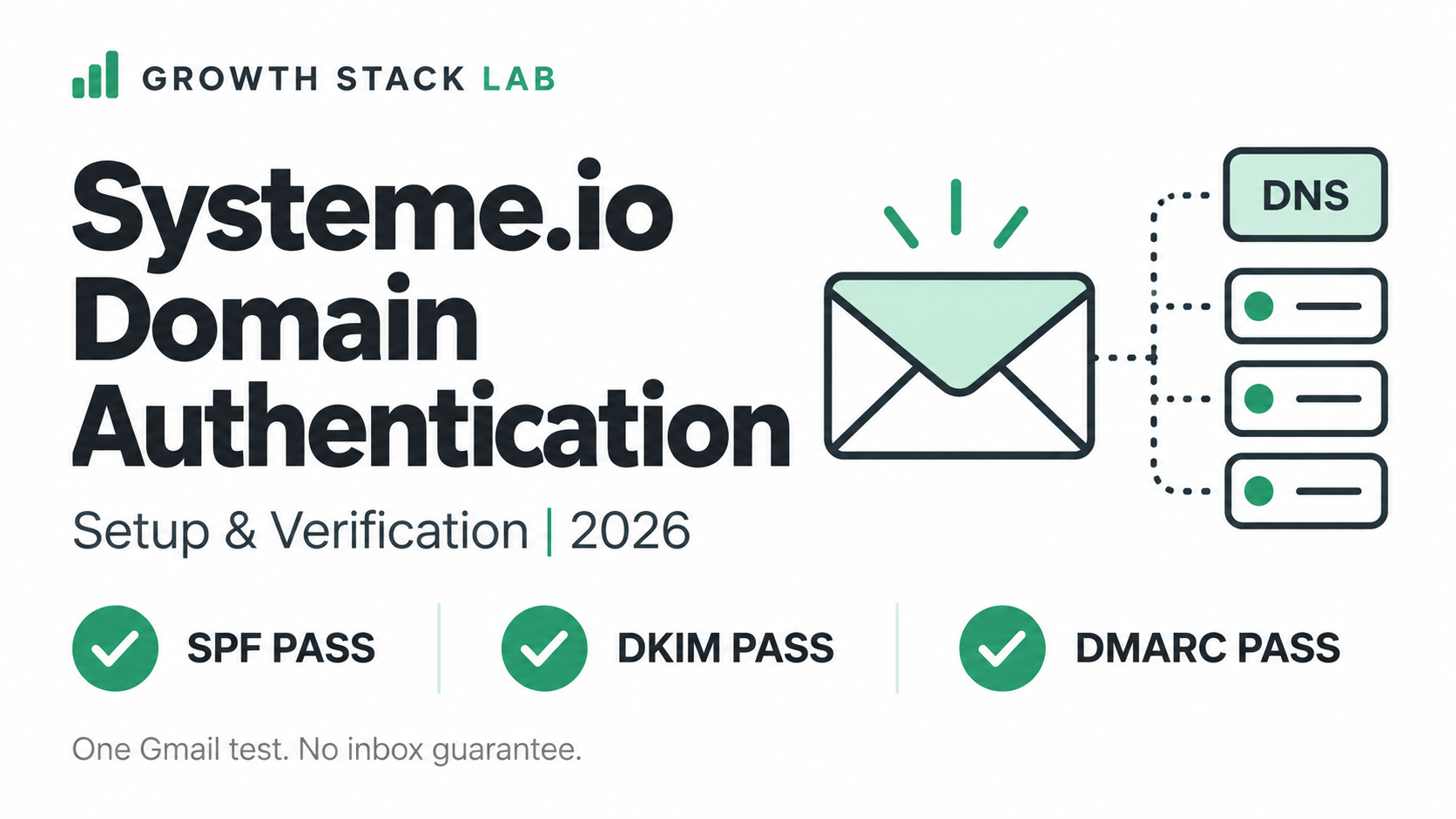
  • Systeme.io Domain Authentication: Setup and Verification (2026)

    Systeme.io Domain Authentication: Setup and Verification (2026)

    Check Systeme.io domain authentication in two places: the DNS records for your sending domain and the authentication results of a delivered test email. A Verified badge alone does not show what the receiving mailbox saw.

    I checked the domain authentication status inside Systeme.io, compared the DNS records it requested with the records actually stored at Namecheap, sent a real email through Systeme.io, and then inspected the message inside Gmail.

    The final Gmail result showed: SPF: PASS, DKIM: PASS, DMARC: PASS.

    That does not prove perfect deliverability or guarantee inbox placement for every future email. It does, however, confirm that the authentication setup used in this test was recognized successfully by Gmail.

    In this guide, I will show you what Systeme.io asked me to configure, what I found in my DNS settings, what Gmail actually reported, and which settings I deliberately did not change.

    Affiliate disclosure: This article may contain affiliate links. If you sign up or purchase through one of these links, Growth Stack Lab may earn a commission at no additional cost to you.

    1. What Domain Authentication Does

    When you send marketing email using your own domain, receiving email providers need a way to evaluate whether the message is legitimately associated with that domain.

    Three technologies commonly appear in this process: SPF, DKIM, and DMARC. They solve related but different problems.

    SPF

    SPF allows a domain to publish information about which sending infrastructure is permitted to send mail on its behalf. The SPF result is evaluated against the domain used in the SMTP envelope, often called the Return-Path or MAIL FROM domain.

    DKIM

    DKIM adds a cryptographic signature to the message. The receiving server can retrieve the corresponding public key from DNS and verify that the signature is valid.

    DMARC

    DMARC builds on SPF and DKIM. It checks whether authenticated domains align appropriately with the domain shown to the recipient in the visible From address.

    For my test, the visible sender was hello@getgrowthstacklab.com. The goal was not simply to see a green “Verified” badge inside Systeme.io. I wanted to confirm what Gmail saw after an actual message was delivered.

    For the broader email feature set, read my Systeme.io Email Marketing Review.

    2. Systeme.io’s Current Domain Authentication Requirements

    Systeme.io currently instructs users to authenticate a custom domain before sending email from that domain. Its setup process generates three CNAME records and one TXT record for DMARC.

    Systeme.io also states that the authenticated domain should point to an active website rather than an error page. It does not support authenticating personal email-provider domains such as Gmail, Yahoo, or ProtonMail as your sending domain.

    Use the official Systeme.io domain authentication guide alongside the records generated in your own account.

    I used getgrowthstacklab.com as the domain and hello@getgrowthstacklab.com as the sender. Growth Stack Lab already had a functioning website on the domain, so I did not need to create a separate website simply for authentication.

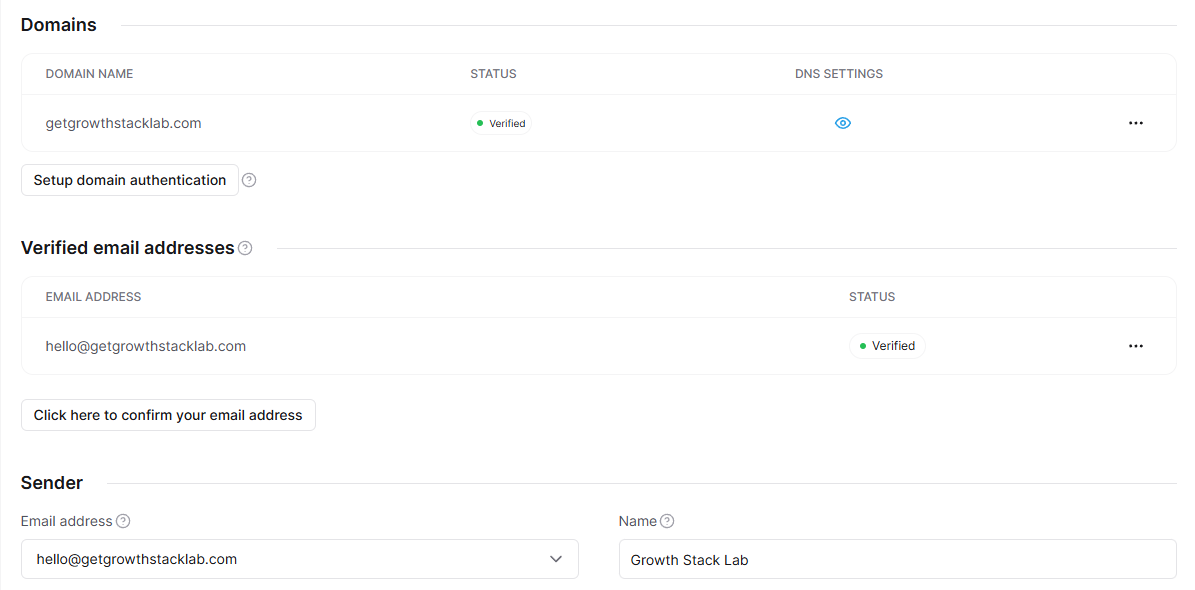
    Systeme.io domain authentication settings showing verified domain and sender email
    Systeme.io showed both the sending domain and sender address as Verified.

    3. My Starting Point: The Domain Was Already Verified

    When I began this test, I expected that I might need to configure authentication from scratch. Instead, I discovered that the domain had already been authenticated.

    Inside Systeme.io, getgrowthstacklab.com showed Verified. The sender address hello@getgrowthstacklab.com also showed Verified.

    That changed the purpose of the experiment. Rather than adding new DNS records, I decided to verify whether the existing records actually matched what Systeme.io required.

    This is an important distinction. A status screen tells you what the platform currently believes. Checking the DNS zone lets you confirm what is actually configured.

    4. The DNS Records Systeme.io Requested

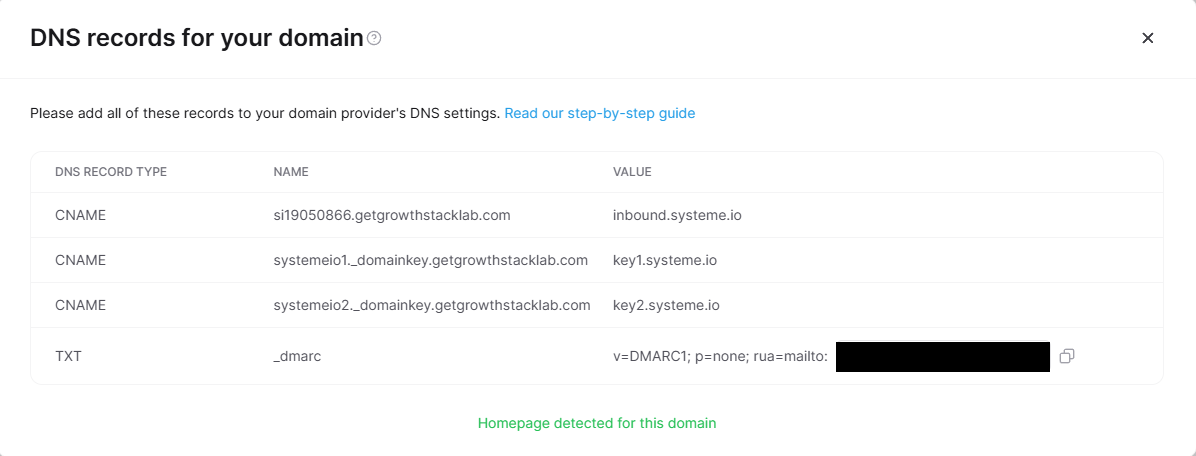
    I opened the DNS settings panel for the authenticated domain. Systeme.io displayed four records. For my account, the structure was:

    TypePurpose
    CNAMESysteme.io sending / return-path subdomain
    CNAMEDKIM selector 1
    CNAMEDKIM selector 2
    TXTDMARC policy

    The generated values can differ between accounts or domains, so copy the records generated inside your own Systeme.io account rather than reuse values from another website.

    In my case, the three CNAME destinations pointed to Systeme.io infrastructure, including inbound.systeme.io, key1.systeme.io, and key2.systeme.io.

    The TXT record was a DMARC record beginning with v=DMARC1; p=none;.

    Systeme.io domain authentication DNS records including CNAME and DMARC entries
    Systeme.io requested three CNAME records and a DMARC TXT record. The private reporting address is redacted.

    A privacy note about DMARC screenshots

    My DMARC record also contained a reporting address after rua=mailto:. I would not publish that private reporting address in a public tutorial.

    If you use a screenshot in your own documentation, hide any private email address, tracking identifier, or account-specific value that readers do not need.

    5. Checking the Same Records in Namecheap

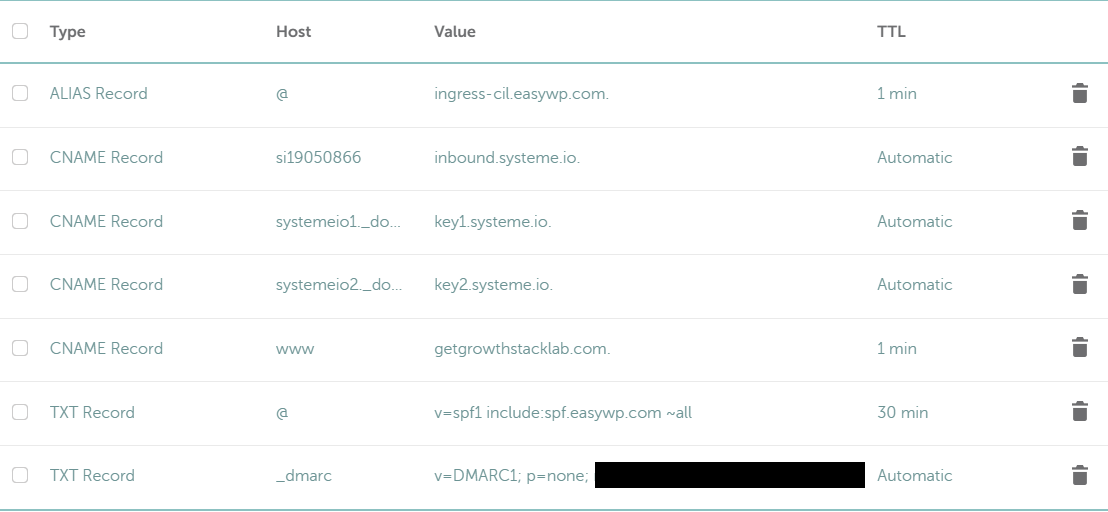
    Growth Stack Lab uses Namecheap to manage the domain’s DNS records. I opened Domain List → Advanced DNS and compared the live DNS entries against the values displayed by Systeme.io.

    The three authentication CNAME records were present. The destinations matched the corresponding Systeme.io values. I then expanded the remaining records and confirmed that the _dmarc TXT record was also present.

    This gave me a much stronger verification chain: Systeme.io requested records → actual Namecheap DNS records → match. No DNS changes were required.

    Namecheap DNS records configured for Systeme.io domain authentication
    The corresponding Namecheap DNS records were present. Private reporting information is redacted.

    6. I Did Not Add Systeme.io to the Root SPF Record

    While reviewing the DNS zone, I noticed another TXT record. The root domain had an SPF record associated with the existing web/email setup.

    At first glance, someone might assume that Systeme.io must be manually added to that SPF record. I did not make that change. Instead, I decided to inspect a real email first.

    That was the safer approach because SPF is evaluated using the SMTP envelope domain, which does not necessarily have to be the same as the visible From domain.

    Changing an existing SPF record without understanding the actual sending path can create a new problem while trying to solve one that may not exist. The Gmail test later confirmed that this message passed SPF with the existing root SPF record unchanged.

    7. Sending a Real Test Email Through Systeme.io

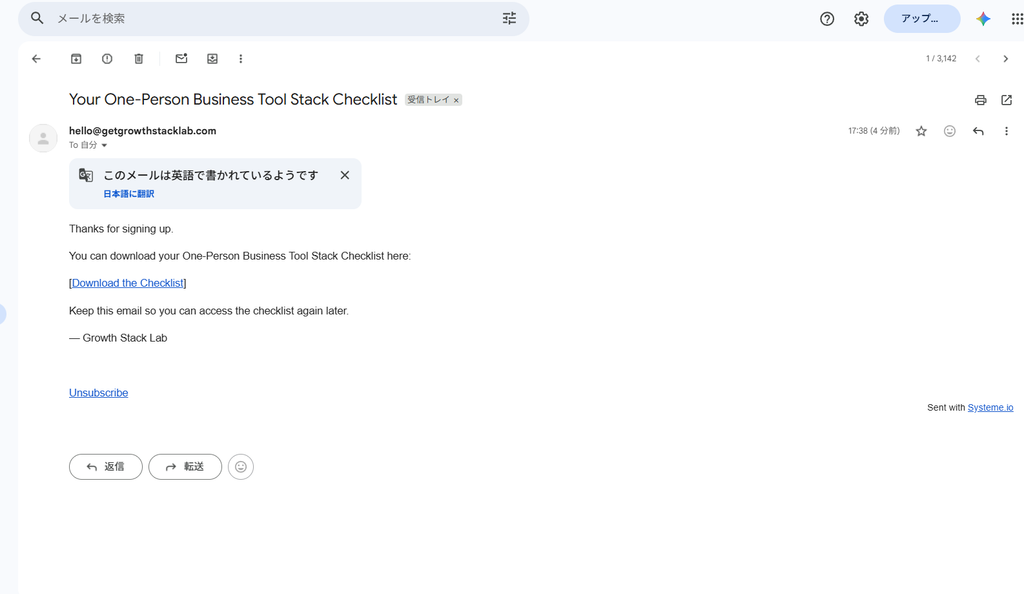
    For the next step, I used the lead magnet workflow I had already built for Growth Stack Lab. The workflow sends Your One-Person Business Tool Stack Checklist from Growth Stack Lab <hello@getgrowthstacklab.com> to a subscriber after an opt-in form is submitted.

    I submitted a test registration and received the message in Gmail. The email arrived successfully. However, receiving an email does not by itself prove that SPF, DKIM, and DMARC passed.

    So I opened Gmail’s original-message view to inspect the authentication results.

    If you want to see how the full lead magnet workflow was built and tested, read my Systeme.io lead magnet funnel guide. My Systeme.io Automation Review covers rules and workflows in more detail.

    8. Gmail Reported SPF: PASS

    Gmail displayed SPF: PASS. The full header showed that the Return-Path used a subdomain under si19050866.getgrowthstacklab.com. The sending IP was associated with Systeme.io’s mail infrastructure.

    This detail explains why I did not need to force a Systeme.io include into the root-domain SPF record simply because I did not see it there.

    In this particular configuration, Gmail successfully authenticated the actual envelope-sender path used by Systeme.io.

    That is an important lesson: Do not diagnose SPF only by looking at the visible From address. Check the actual message header and Return-Path.

    9. Gmail Reported DKIM: PASS

    The DKIM result was especially useful. Gmail reported a successful DKIM authentication for getgrowthstacklab.com. The message also contained another valid DKIM signature associated with Systeme.io infrastructure, inbound.systeme.io.

    For the purposes of this test, the important result was that Gmail successfully validated a DKIM signature using my own sending domain. That gave me direct evidence that the DKIM records configured through Systeme.io were functioning in the delivered message.

    10. Gmail Reported DMARC: PASS

    Gmail also reported DMARC: PASS. The full authentication result referenced header.from=getgrowthstacklab.com.

    That matters because DMARC is concerned with alignment between the visible From domain and authenticated identities. In my test, Gmail accepted that alignment.

    The DMARC record used p=none during this test. This is a monitoring policy. I did not change it to quarantine or reject during the experiment.

    Those policies can affect legitimate mail if your sending ecosystem has not been audited carefully. Changing DMARC enforcement would be a separate decision, not something I would do simply to make a tutorial look more secure.

    Gmail authentication results showing SPF DKIM and DMARC PASS for Systeme.io email
    Gmail reported SPF, DKIM, and DMARC PASS for this test message. Recipient information is redacted.

    11. My Actual Authentication Test Results

    Here is the complete result from this experiment.

    TestActual result
    Systeme.io domain statusVerified
    Sender email statusVerified
    Required CNAME recordsPresent in Namecheap
    DMARC TXT recordPresent in Namecheap
    DNS values matched Systeme.ioYes
    Test email sentYes
    Gmail receiptSuccessful
    SPFPASS
    DKIMPASS
    DMARCPASS
    Long-term deliverabilityNot tested
    Outlook/Yahoo authenticationNot tested
    Real subscriber performanceNot tested

    That final group of “Not tested” items is important. One Gmail test is evidence of one successful authentication path. It is not proof of universal deliverability.

    12. Expected vs Actual vs Fix

    I use an Expected / Actual / Fix framework for Growth Stack Lab tests so that setup work does not get confused with verified results.

    Domain authentication

    Expected: Add the DNS records requested by Systeme.io and obtain a Verified status.

    Actual: The domain was already Verified. The requested records were already present in Namecheap and matched Systeme.io.

    Fix: None.

    Sender verification

    Expected: Verify the sender address before using it for email.

    Actual: hello@getgrowthstacklab.com was already Verified.

    Fix: None.

    SPF

    Expected: A test email should pass SPF.

    Actual: Gmail reported SPF PASS.

    Fix: None. I did not modify the root SPF record.

    DKIM

    Expected: A message from the custom domain should contain a DKIM signature that Gmail can validate.

    Actual: Gmail reported DKIM PASS for getgrowthstacklab.com.

    Fix: None.

    DMARC

    Expected: The visible From domain should pass DMARC alignment.

    Actual: Gmail reported DMARC PASS.

    Fix: None.

    13. Common Mistakes to Avoid

    This test highlighted several mistakes worth avoiding.

    Mistake 1: Treating “Verified” as the only proof you need

    The platform status is useful, but a receiving mailbox can tell you what happened to a real delivered message. Check both.

    Mistake 2: Copying someone else’s DNS records

    The authentication records generated for one account may not belong to another. Always use the values shown inside your own Systeme.io account.

    Mistake 3: Editing SPF before checking the Return-Path

    The visible From address is not the only domain involved in SPF. Inspect the real message first.

    Mistake 4: Assuming authentication guarantees inbox placement

    SPF, DKIM, and DMARC are important authentication mechanisms. They do not guarantee that every message will reach the inbox.

    Sender reputation, engagement, content, complaint rates, list quality, sending patterns, and provider policies can also affect delivery.

    Mistake 5: Strengthening DMARC without auditing your mail sources

    Moving from p=none to stronger enforcement can be useful in the right environment. It can also block legitimate mail if another service sends on behalf of your domain without correct authentication. Do not change DMARC enforcement casually.

    14. Does Systeme.io Domain Authentication Improve Deliverability?

    Authentication is an important part of modern email delivery, but I would not describe it as a guarantee. Systeme.io itself recommends authenticating the sending domain as part of its deliverability guidance.

    Google’s email sender guidelines also require email authentication for Gmail senders, with additional requirements applying to higher-volume senders.

    For Growth Stack Lab, the useful conclusion from this test is narrower: The Systeme.io authentication configuration I tested was accepted by Gmail, with SPF, DKIM, and DMARC all returning PASS.

    That is a meaningful technical result. It is not a conversion-rate result, a long-term inbox-placement study, or proof that another provider will make the same decision.

    If authentication passes but an expected email is still missing, use the Systeme.io emails-not-sending checklist to check the trigger, campaign timing, contact status, and any sending hold before changing working DNS records.

    15. Is Domain Authentication Difficult With Namecheap?

    In my case, no new configuration was required because the records were already present.

    If you are setting it up from scratch, follow the official Systeme.io Namecheap authentication guide. The process is conceptually simple:

    1. Open Systeme.io’s Email settings.
    2. Add your custom domain for authentication.
    3. Display the generated DNS records.
    4. Open Namecheap’s Advanced DNS settings.
    5. Add the requested CNAME records.
    6. Add the DMARC TXT record if required, checking for an existing policy first.
    7. Wait for DNS propagation and Systeme.io verification.
    8. Confirm the sender email address.
    9. Send a real test message.
    10. Inspect the receiving mailbox’s authentication results.

    The DNS part is only half of the process. The final test is what tells you whether your real message was accepted with the expected authentication results.

    Frequently Asked Questions

    Do I need to authenticate my domain to send email with Systeme.io?

    Systeme.io currently requires domain authentication when using your own custom domain for email sending. You should follow the records generated inside your own account because authentication values can differ between domains or accounts.

    What DNS records does Systeme.io use for domain authentication?

    In the configuration I checked, Systeme.io generated three CNAME records and one TXT record for DMARC. The exact hostnames should be copied from your own Systeme.io account.

    Does Systeme.io support DKIM?

    Yes. In my Gmail test, a message sent through my authenticated Systeme.io setup returned DKIM PASS for getgrowthstacklab.com.

    Does Systeme.io support SPF?

    My test email returned SPF PASS. The actual SPF evaluation used the message’s Return-Path subdomain, which is why I checked the delivered message instead of changing my root SPF record based on assumptions.

    Does DMARC need to be set to reject?

    No. The configuration I tested used p=none, and Gmail returned DMARC PASS for that message. Choosing none, quarantine, or reject is a broader domain-security decision and should account for every legitimate service that sends mail using your domain.

    Does passing SPF, DKIM, and DMARC guarantee inbox delivery?

    No. My test proves that Gmail accepted the authentication for this message. It does not prove universal inbox placement or long-term deliverability.

    Final Thoughts

    The most useful part of this experiment was not seeing a green Verified badge inside Systeme.io. It was tracing the complete authentication chain.

    Systeme.io showed the domain as Verified. The required DNS records were present in Namecheap. A real message was sent from hello@getgrowthstacklab.com. Gmail then reported SPF: PASS, DKIM: PASS, DMARC: PASS.

    That is the level of verification I would want before describing an email authentication setup as successfully tested.

    If you are configuring Systeme.io for your own business, copy the DNS values from your account carefully, confirm your sender address, and send a real test message before relying on the setup for an audience.

    Before choosing a plan, read my Systeme.io Free Plan Limitations guide.

    Want to test Systeme.io yourself?

    Explore Systeme.io’s Free plan and verify the full email-sending workflow with your own domain before using it for a live list.

  • How to Build and Test a Systeme.io Lead Magnet Funnel (2026)

    How to Build and Test a Systeme.io Lead Magnet Funnel (2026)

    Building a lead magnet funnel is one thing. Making sure the entire subscriber journey actually works is another.

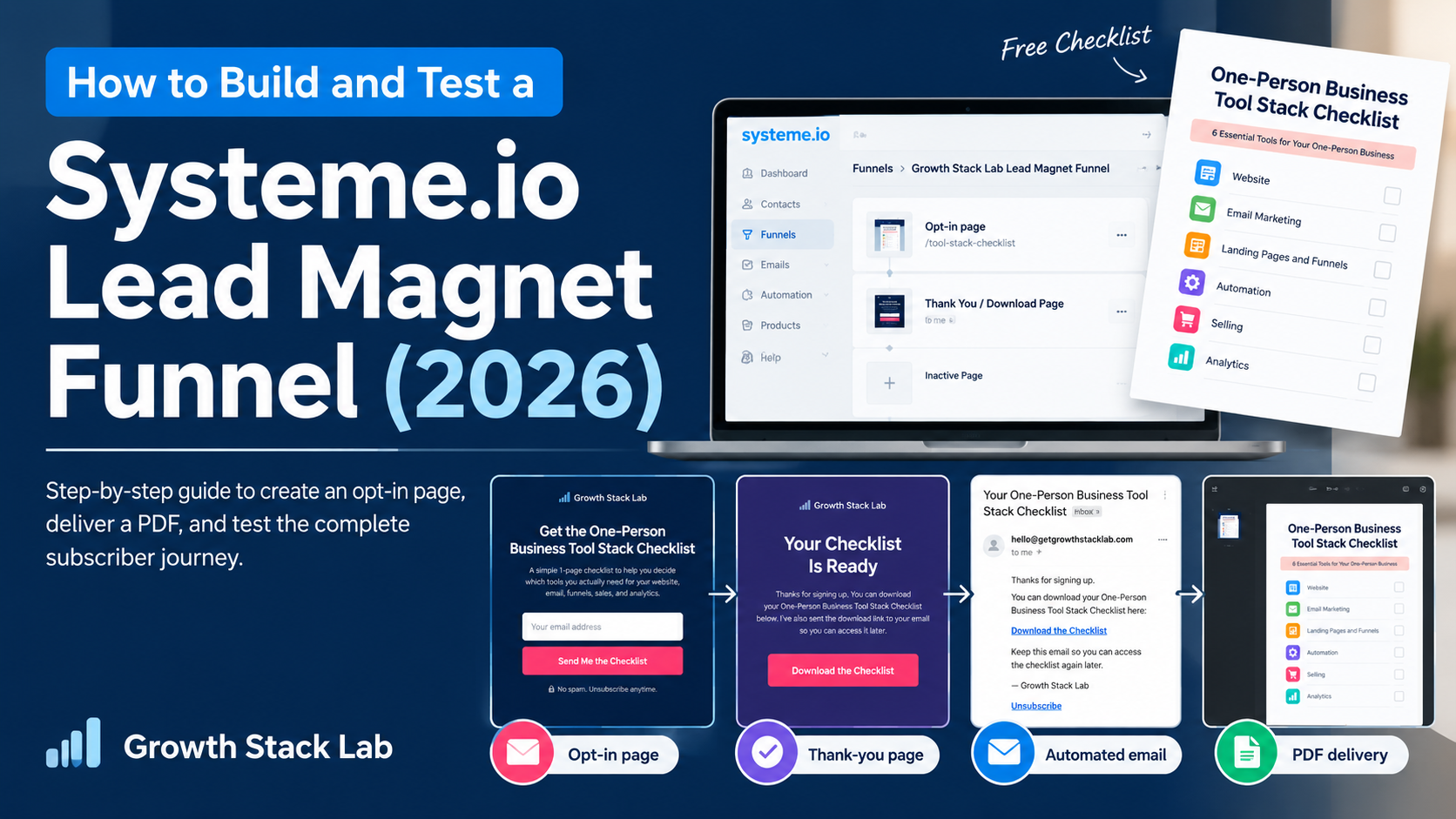
    In September 2026, I built a complete Systeme.io lead magnet funnel for Growth Stack Lab and tested it using a separate email address.

    My goal was simple: create a one-page PDF, collect an email address, deliver the resource automatically, and verify that subscribers could unsubscribe.

    I wanted to test the process rather than assume that a correctly configured automation would work.

    The result? My test registration successfully reached the thank-you page, triggered an automated email, and delivered the PDF through a working download link. I also completed the unsubscribe process and checked the contact’s updated status inside Systeme.io.

    In this guide, I’ll walk through exactly what I built, how I configured each step, what I tested, and what I learned.

    Affiliate disclosure: This article may contain affiliate links. If you sign up or purchase through one of these links, Growth Stack Lab may earn a commission at no additional cost to you.

    1. What I Built: A Simple Lead Magnet Funnel

    A lead magnet is a free resource offered in exchange for a visitor’s contact information.

    It might be a checklist, template, short guide, worksheet, or another useful resource.

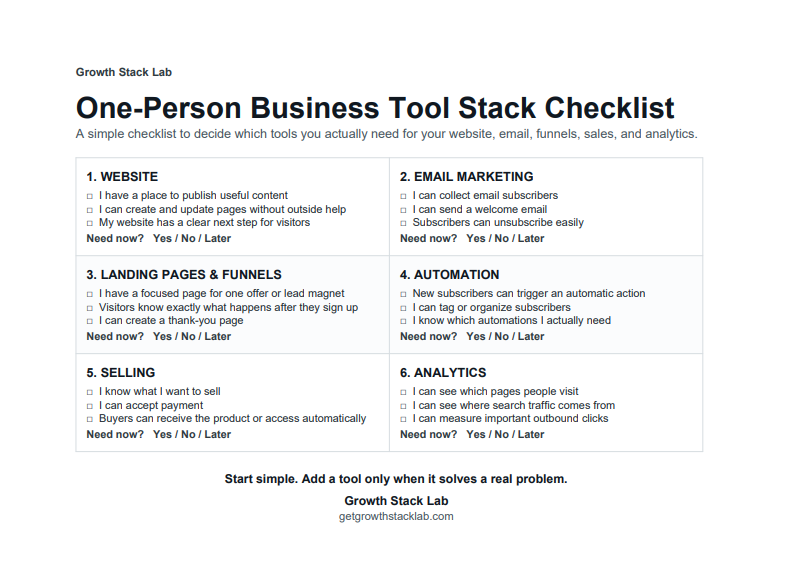
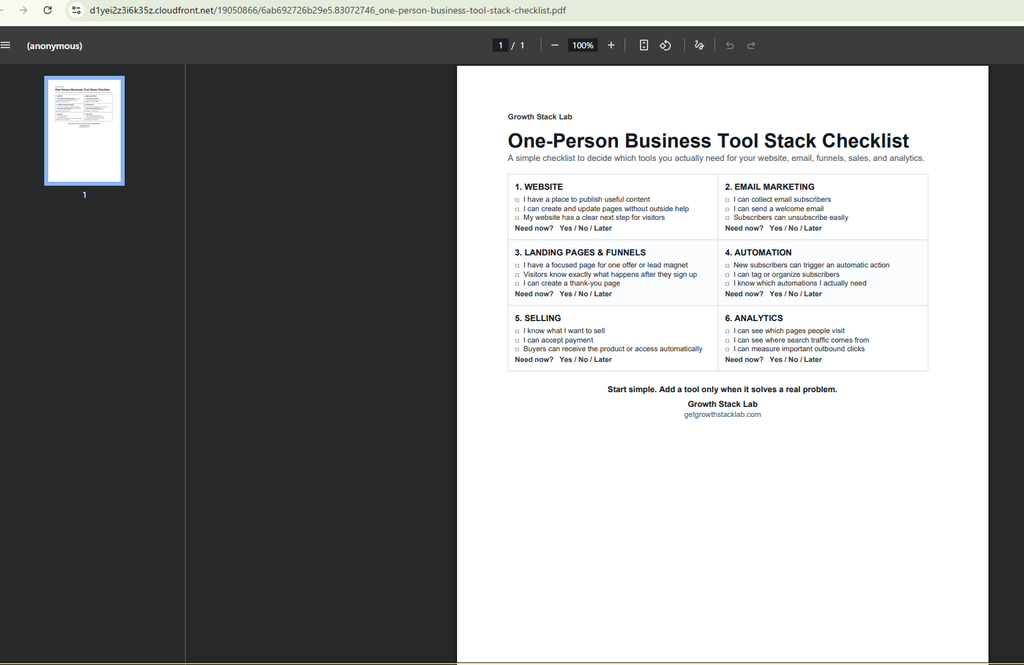
    For this experiment, I created a one-page PDF titled:

    One-Person Business Tool Stack Checklist

    The checklist helps solopreneurs review six areas of their business:

    • Website
    • Email marketing
    • Landing pages and funnels
    • Automation
    • Selling
    • Analytics

    Each section contains practical questions to help readers identify which tools they need now and which can wait.

    Rather than creating a complicated lead magnet, I deliberately kept the resource short and useful.

    The resulting funnel had a straightforward structure:

    Opt-in page → Thank-you page → PDF download

    An automation rule also sent a separate delivery email, allowing subscribers to access the resource later.

    That gave me two delivery methods to test: the thank-you page and the email.

    Want the checklist used in this walkthrough? Get Growth Stack Lab’s free One-Person Business Tool Stack Checklist to review your website, email, funnels, sales, and analytics needs.

    Get the Free Checklist

    2. What You Need Before Starting

    For this particular Systeme.io lead magnet funnel, I used:

    • A Systeme.io account
    • A downloadable PDF
    • An email address for sending the resource
    • A separate email address for testing
    • One opt-in page
    • One thank-you page
    • One automation rule

    No coding was necessary for the funnel configuration I tested.

    If you are still deciding which plan to use, see my Systeme.io pricing breakdown.

    The Free plan provides access to the core features needed for this type of experiment, although its resource limits should be checked before building multiple funnels or automations.

    I used a free account for the experiment described here.

    3. Create Your Lead Magnet PDF

    Before opening the funnel builder, I prepared the downloadable resource.

    The goal was to create something that could be understood and used within a few minutes.

    My checklist was divided into six business functions, with simple questions and space to decide whether a tool was needed immediately.

    I exported the document as a single-page PDF.

    The file was named:

    one-person-business-tool-stack-checklist.pdf

    I also uploaded a copy to the Growth Stack Lab WordPress Media Library. This gave me a publicly accessible PDF URL that I could use in the delivery email.

    One important distinction: a publicly accessible PDF link is not a protected download. Someone with the URL may be able to open it without submitting the opt-in form.

    For this free educational resource, that was acceptable. If you need restricted access, use a delivery method designed for protected content.

    One-Person Business Tool Stack Checklist PDF covering six essential business tools

    4. Create a Funnel in Systeme.io

    After preparing the PDF, I opened Systeme.io and navigated to the sales funnel section.

    I clicked Create and entered a descriptive name:

    Growth Stack Lab Lead Magnet Funnel

    Systeme.io presented several funnel goals, including building an audience, selling a product, creating a custom funnel, and running an evergreen webinar.

    For this experiment, I selected Build an audience.

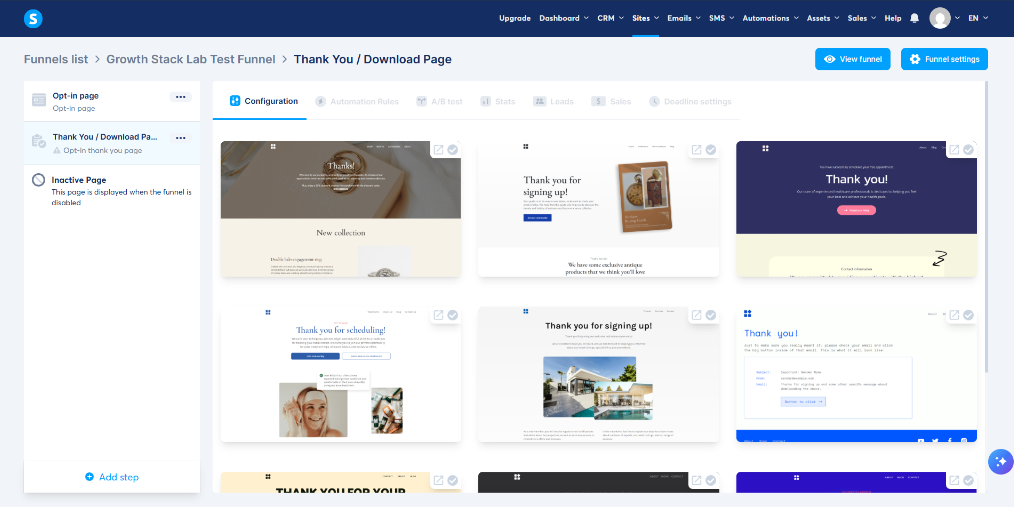
    That option created the basic funnel structure I needed: an opt-in step followed by a thank-you step.

    I did not need a checkout page because I was giving away a free checklist, not selling a product.

    Systeme.io funnel dashboard showing the opt-in and thank-you page steps

    If you want a closer look at the funnel builder itself, check Systeme.io’s official documentation.

    5. Customize the Opt-in Page

    Next, I selected the Opt-in page and opened the page editor.

    I started with an available template and removed elements that did not belong in the lead magnet experience.

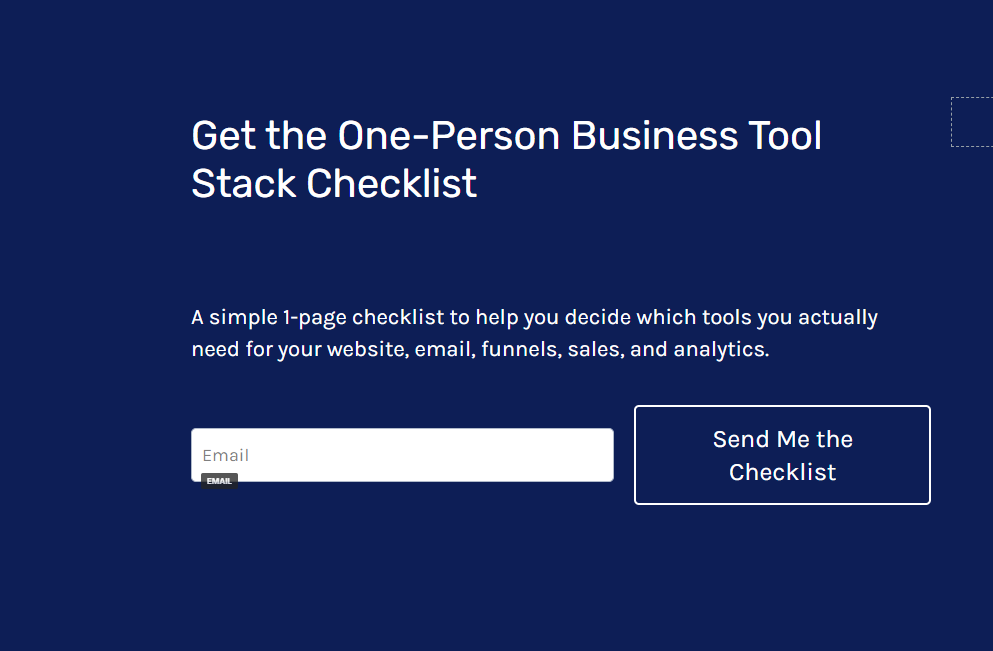
    The final version used a dark navy background, a headline, short supporting text, an email field, and one primary button.

    Headline

    Get the One-Person Business Tool Stack Checklist

    Supporting Copy

    A simple 1-page checklist to help you decide which tools you actually need for your website, email, funnels, sales, and analytics.

    CTA Button

    Send Me the Checklist

    I intentionally kept the page focused on one action: submitting an email address.

    An unnecessary navigation menu, unrelated images, or additional calls to action would make the purpose less clear.

    I also replaced the original random URL path with:

    tool-stack-checklist

    This made the public link easier to recognize and reuse.

    Systeme.io lead magnet funnel opt-in page with email signup form and checklist CTA

    For the form submission button, the important setting is the submission action. In my configuration, submitting the form saved the contact and moved the visitor to the next funnel step.

    This behavior was subsequently verified during the live test.

    6. Build the Thank-you and Download Page

    The second step was the thank-you page.

    I selected a template with a prominent headline and central button, then replaced the original template content with messaging relevant to the checklist.

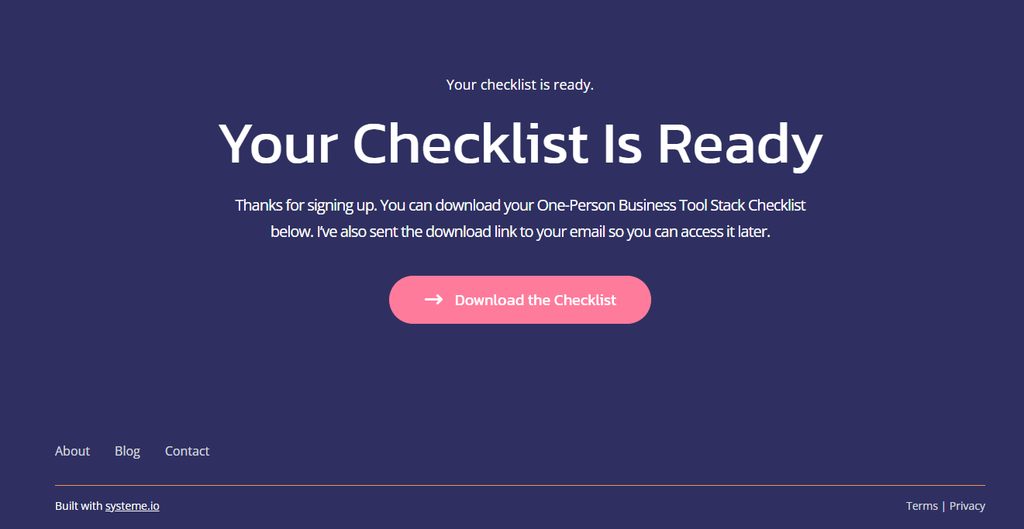
    The final page contained:

    Main Heading

    Your Checklist Is Ready

    Description

    Thanks for signing up. You can download your One-Person Business Tool Stack Checklist below. I’ve also sent the download link to your email so you can access it later.

    Download Button

    Download the Checklist

    Initially, I configured the button using an external PDF URL.

    I later switched the button action to Download file and uploaded the PDF directly into Systeme.io.

    This allowed the button to serve the file through Systeme.io rather than depend on the WordPress Media Library URL.

    During testing, I confirmed that the PDF opened successfully from the live thank-you page.

    This was an important distinction because a button that looks correct inside an editor has not necessarily been verified in the live funnel.

    Systeme.io thank-you page with the Download the Checklist button
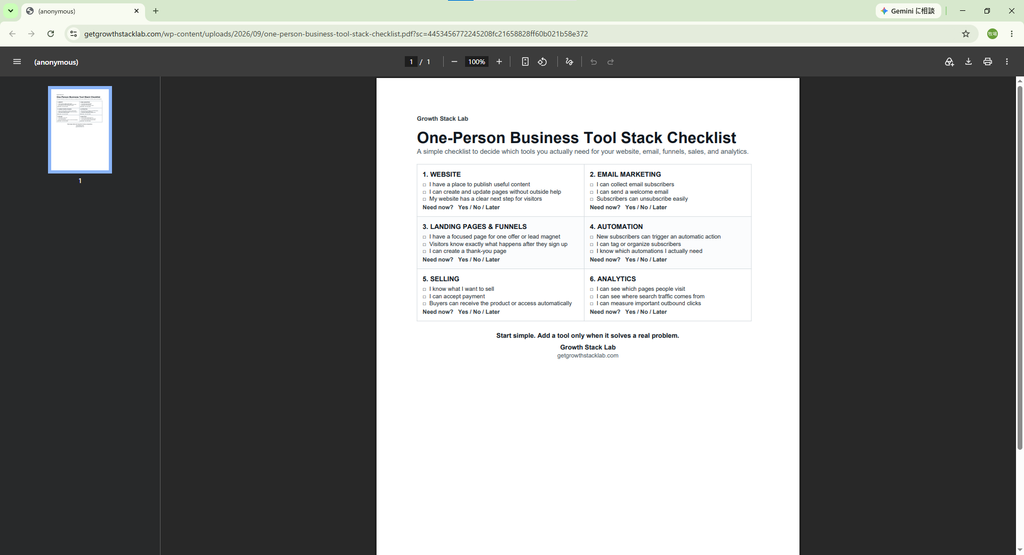
    One-Person Business Tool Stack Checklist PDF opened through the Systeme.io download button

    7. Create the Automated Delivery Email

    The thank-you page provided immediate access to the checklist, but I also wanted subscribers to receive the resource by email.

    This meant they could return to the file without revisiting the original funnel.

    I created a simple email with the following settings:

    SettingMy Configuration
    Sender nameGrowth Stack Lab
    Sender addresshello@getgrowthstacklab.com
    SubjectYour One-Person Business Tool Stack Checklist
    Delivery methodDownload link

    The email itself was intentionally brief.

    It thanked the subscriber, explained where to find the checklist, and included a clickable link to the PDF hosted on Growth Stack Lab.

    I chose a link instead of attaching the PDF.

    This made it possible to test the complete journey from email receipt to opening the file.

    I also confirmed that the email contained an unsubscribe link.

    I checked the sending domain separately in my Systeme.io domain authentication test, where Gmail reported SPF, DKIM, and DMARC PASS for one delivered message.

    Automated Systeme.io lead magnet delivery email received in Gmail with PDF download link

    If you want a deeper look at the platform’s built-in email features, see my Systeme.io Email Marketing Review.

    8. Connect the Opt-in Form to an Automation Rule

    This was one of the most important configuration steps.

    Creating a delivery email does not automatically connect it to every form.

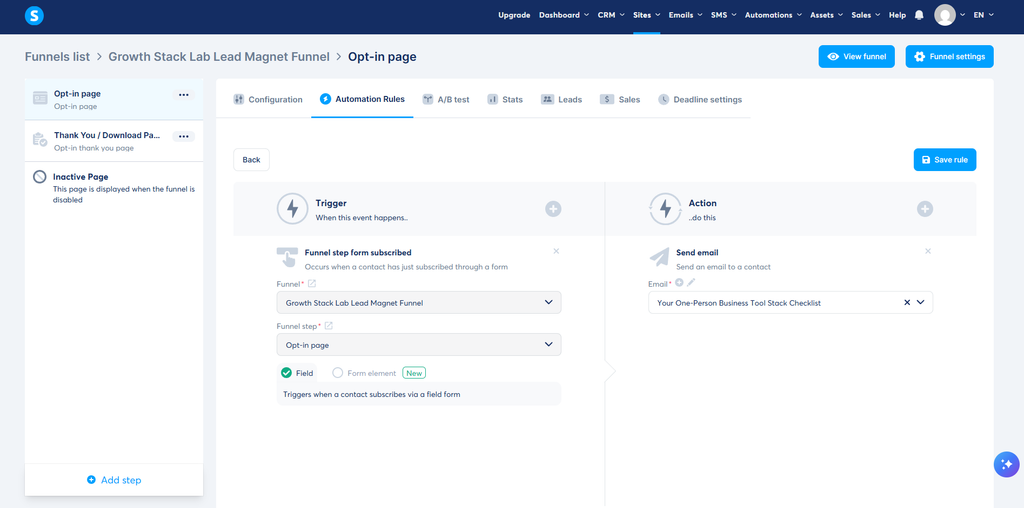
    Inside my funnel, I selected the Opt-in page and opened the Automation Rules tab.

    I created a rule using the following configuration:

    SettingValue
    TriggerFunnel step form subscribed
    FunnelGrowth Stack Lab Lead Magnet Funnel
    Funnel stepOpt-in page
    TypeField
    ActionSend email
    EmailYour One-Person Business Tool Stack Checklist

    The key detail was selecting the correct funnel step.

    While configuring the rule, I initially had the Thank-you page selected. I changed it to the Opt-in page before saving because the email should be triggered when someone submits the registration form.

    I then selected the delivery email and saved the rule.

    The automation appeared as active in the funnel dashboard.

    I cover the broader automation features in my Systeme.io Automation Review.

    Systeme.io automation rule configured to send an email after an opt-in form subscription

    An important lesson from this step is that choosing the correct trigger matters just as much as writing the email itself.

    If the trigger points to the wrong step, the automation may not behave as intended.

    9. Test the Complete Funnel Using a Separate Email Address

    After configuring the pages, PDF, and automation, I ran a real end-to-end test.

    I opened the public opt-in URL rather than relying exclusively on the editor.

    I then entered a separate test email address and submitted the form.

    The browser successfully redirected me to the completed thank-you page.

    The main heading, supporting text, and download button all appeared correctly.

    I then checked the test inbox.

    The automated delivery email arrived in Gmail’s regular inbox.

    This was an important result, but it only describes my own test. It does not establish that every subscriber or email provider will handle future messages the same way.

    If your test email does not arrive, work through the Systeme.io email troubleshooting checklist before repeating the signup. It separates form and campaign enrollment problems from timing, contact status, and inbox placement.

    Next, I opened the link inside the email.

    It successfully opened the correct one-page PDF hosted on the Growth Stack Lab website.

    This confirmed that the email delivery link worked independently of the thank-you page’s direct download button.

    My Actual Test Results

    TestResult
    Public opt-in form submissionPassed
    Thank-you page redirectPassed
    Contact creationPassed
    Automation executionPassed
    Delivery email receivedPassed
    Gmail inbox placementRegular inbox
    Email PDF linkPassed
    Unsubscribe processPassed
    Checklist PDF successfully opened from the automated email download link

    10. Test the Unsubscribe Process

    I did not want to stop the experiment immediately after receiving the PDF.

    An email funnel should also give recipients a functioning way to stop receiving marketing messages.

    I clicked the Unsubscribe link at the bottom of the delivery email.

    Systeme.io opened its unsubscribe page and displayed the option to unsubscribe from all marketing emails.

    I selected Confirm.

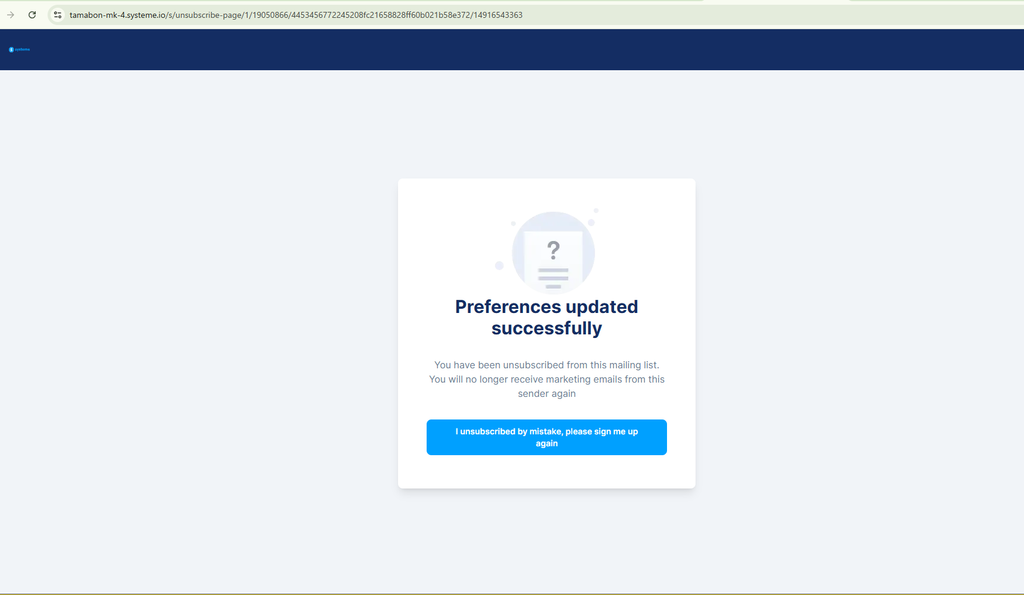
    The next screen displayed a successful preference update and explained that marketing emails from the sender would no longer be received.

    Finally, I returned to the Systeme.io CRM and opened the test contact.

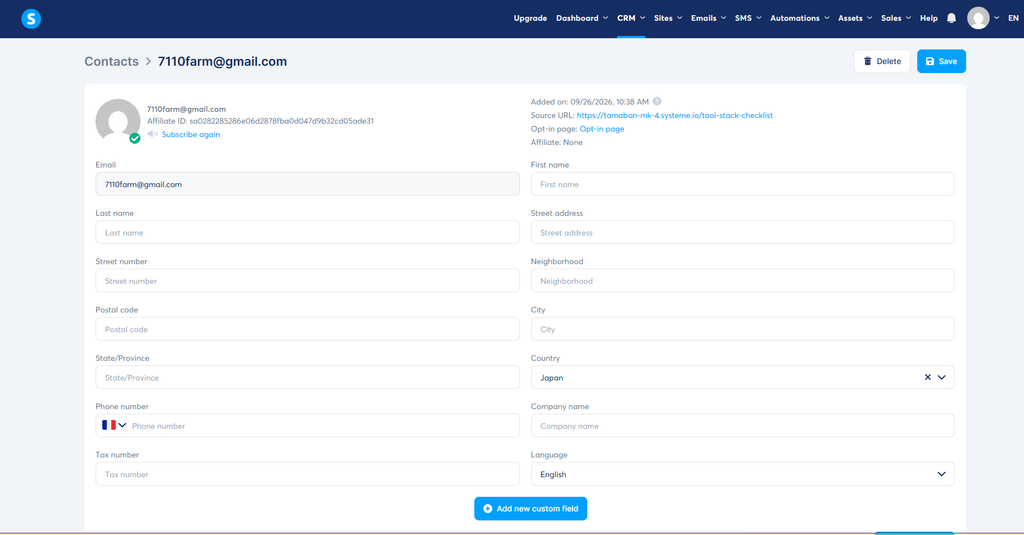
    The contact remained in the database, and the interface displayed a Subscribe again option, consistent with the completed unsubscribe action.

    The email history also showed the delivery message, while the automation history showed the Send email action.

    This was useful because it let me verify both the subscriber-facing result and the corresponding CRM record.

    Systeme.io unsubscribe confirmation showing that email preferences were successfully updated
    Systeme.io CRM contact record showing the Subscribe again option after unsubscribing

    11. Problems I Encountered and How I Fixed Them

    Not every part of the configuration worked perfectly on the first attempt.

    A few issues were worth documenting.

    Problem 1: The Original Template Had Unrelated Content

    The opt-in and thank-you templates contained elements intended for completely different businesses.

    Some of the original copy referred to volunteering, healthcare, or appointments.

    I replaced the text, removed unnecessary navigation where possible, and simplified the main section.

    The practical lesson is to review the entire page, not just the visible headline and button.

    Problem 2: The Download Button Did Not Initially Respond During Testing

    My first download setup used the Open URL button action.

    I subsequently switched to Download file and uploaded the PDF directly into Systeme.io.

    The file opened successfully during the live funnel test.

    If a download does not behave as expected, check the button action, selected file, saved settings, and live URL separately.

    Problem 3: The Automation Trigger Initially Referred to the Wrong Step

    When creating the automation, the funnel step initially pointed to the Thank-you page.

    I corrected it to the Opt-in page.

    This distinction matters because the trigger must correspond to the form where the subscriber enters their email address.

    Problem 4: I Had to Distinguish a Genuine Delivery Email from an Unrelated Message

    During the Gmail verification process, I initially inspected an unrelated SEO report.

    After searching for the exact subject line, I located the correct Systeme.io delivery email.

    The lesson is simple: verify the subject, sender, and content before recording a delivery test as successful.

    12. Was the Systeme.io Free Plan Enough?

    For this particular experiment, the Free plan supported the configuration I needed.

    I was able to build the pages, upload the checklist, configure a delivery email, and connect the registration form to an automation rule.

    My test used one funnel and one automation rule.

    This was enough for the simple PDF delivery workflow described in this article.

    However, this experiment does not establish whether the Free plan would be suitable for a larger business with multiple campaigns, complex automation sequences, or a growing subscriber database.

    Before building a larger system, I recommend checking the current plan limits against your actual requirements.

    For a more detailed discussion, read Growth Stack Lab’s Systeme.io Free Plan Limitations article.

    You can also consult the official Systeme.io pricing page for current plan features and restrictions.

    13. What This Experiment Actually Proved

    My Systeme.io lead magnet funnel experiment focused on testing the complete subscriber journey rather than simply publishing a landing page.

    This experiment demonstrated that I could create a simple email capture and PDF delivery workflow using Systeme.io.

    I verified the main steps myself rather than relying only on the platform’s feature descriptions.

    The workflow successfully:

    1. Accepted an email address.
    2. Redirected the visitor to the thank-you page.
    3. Created a CRM contact.
    4. Triggered an automated email.
    5. Delivered the email to my Gmail inbox.
    6. Opened the checklist through the email link.
    7. Processed an unsubscribe request.

    There are also clear limitations to this result.

    I used a single test subscriber.

    I did not measure conversion rates, campaign performance, long-term deliverability, or real audience growth.

    Those questions require additional tests and actual visitor data.

    This test used one automated delivery email. For a proposed three-email follow-up, see our Systeme.io welcome email sequence guide. Growth Stack Lab has not configured or tested that sequence.

    However, the experiment did establish that the basic lead magnet journey worked in my configuration.

    For someone setting up a one-person business, this is a useful first milestone: knowing that the complete technical workflow functions before investing time or money in driving traffic to it.

    Frequently Asked Questions

    Can I build a lead magnet funnel with Systeme.io for free?

    Yes. I created and tested this particular funnel using a free account. The Free plan includes funnel, email, and automation functionality, subject to its usage limits.

    Can Systeme.io send a PDF automatically after someone subscribes?

    Yes. You can connect an opt-in form to an automated email and include a downloadable PDF link.

    A PDF can also be provided through a download button on the thank-you page.

    In my experiment, I tested both delivery methods.

    Does Systeme.io require a separate email marketing service?

    Not for the basic workflow tested here. I used its built-in email and automation features.

    The registration, contact creation, email delivery, and unsubscribe process were all handled within my Systeme.io setup.

    What happens after someone submits an opt-in form?

    In my configuration, the submission created a contact, redirected the visitor to the next funnel step, and triggered a delivery email.

    I confirmed these actions through the live test and the contact history inside the CRM.

    Can subscribers unsubscribe from automated emails?

    Yes. My test delivery email included an unsubscribe link.

    I completed the unsubscribe process and checked the updated subscription status in the CRM.

    The contact record remained available, but the interface displayed an option to subscribe again.

    Final Thoughts

    Building my first Systeme.io lead magnet funnel helped me understand the difference between configuring a marketing workflow and confirming that it actually works.

    The editor made it possible to create the pages without coding, while the automation system connected the registration form to the delivery email.

    The most valuable part of the process was the final test.

    By using a separate email address, I could experience the funnel as a subscriber, identify configuration details that needed attention, and confirm the actual delivery and unsubscribe behavior.

    For someone running a one-person business, a simple, tested workflow is a useful starting point.

    Want to try building your own funnel?

    Explore Systeme.io’s Free plan and test the complete signup and delivery process before relying on it for a real audience.

    A final reminder: always test the full subscriber journey yourself, including the download link and unsubscribe process, before sending traffic to a new funnel.