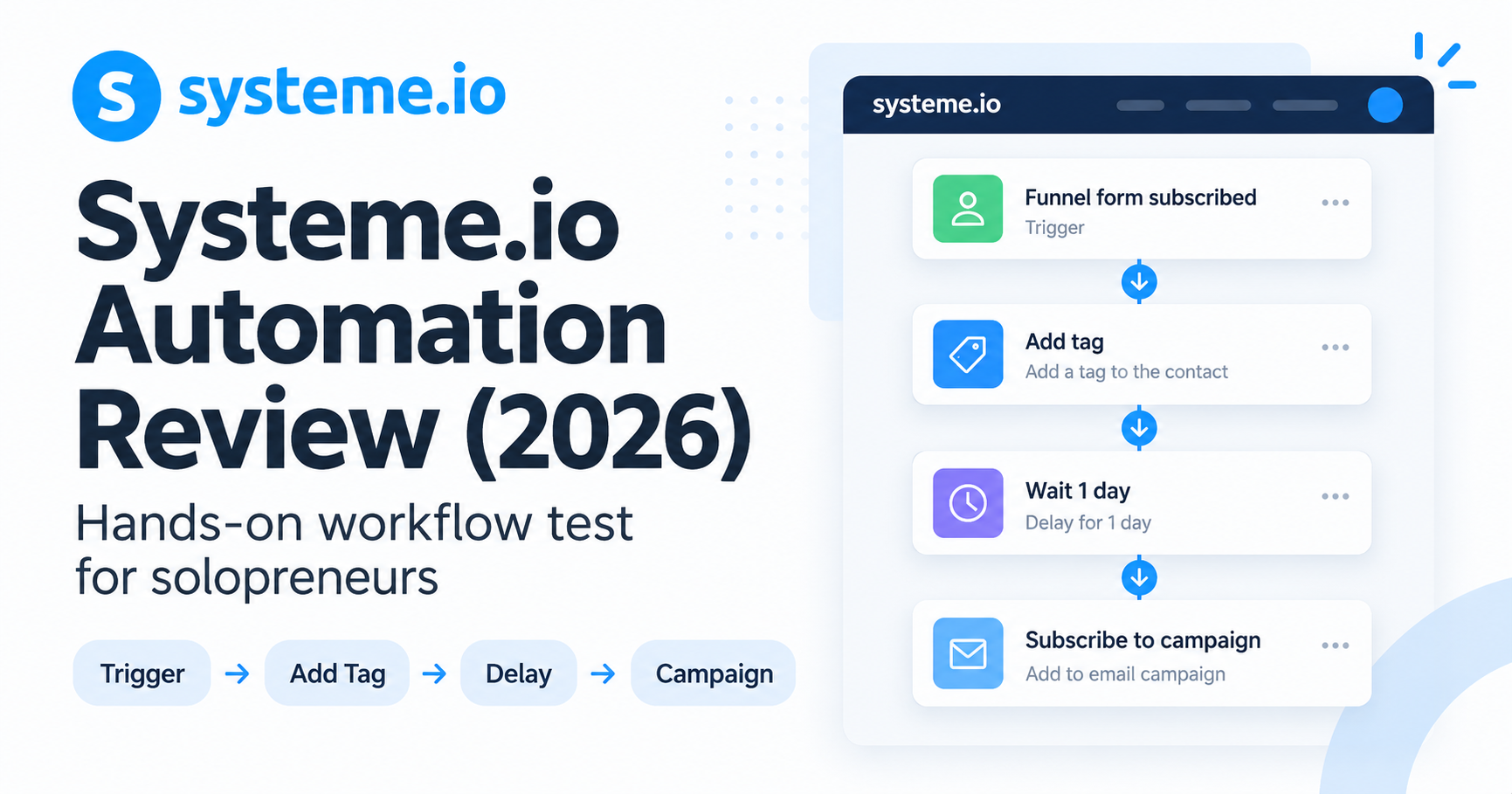
Systeme.io automation can send an email after a signup, enroll the subscriber in a campaign, or route them through a branching workflow. A Rule handles the trigger and action; a Workflow adds steps such as delays and decisions.
This Systeme.io automation review covers the signup-to-PDF-email route that GSL verified with one test subscriber. The workflow screenshot shows an editor configuration, while the three-email welcome guide is documentation-based and untested.
Affiliate disclosure: If you sign up through links in this article, Growth Stack Lab may earn a commission at no additional cost to you.
Table of Contents
Quick Answer: Is Systeme.io Automation Good?
Choose the setup by the job it needs to do. The allowances below are shared across your Free account.
| Use case | Rule or Workflow | Free allowance | GSL evidence |
|---|---|---|---|
| Deliver one PDF email after an opt-in | Rule: Funnel step form subscribed → Send email | 1 rule; this route does not need a campaign or Workflow | Tested with one subscriber: Gmail receipt, PDF link, and unsubscribe/CRM status. |
| Send a three-email welcome sequence | Rule: Funnel step form subscribed → Subscribe to campaign; timing lives in the campaign | 1 rule and 1 campaign | Documentation-based design. GSL has not configured or tested this sequence. |
| Add a tag, wait, then enroll the contact in a campaign | Workflow with Action and Delay steps | 1 workflow, 1 tag, and 1 campaign if this design uses all three | Editor configuration shown below; this is not a recorded end-to-end delivery result. |
| Choose different follow-up for buyers and non-buyers | Workflow with a Decision and Yes/No paths | 1 workflow; any tags and campaigns also count toward the 1-tag and 1-campaign allowances | Vendor-documented behavior. GSL has not verified every branch. |
The official pricing comparison, checked on October 7, 2026, lists one rule, one workflow, one campaign, and one tag. Check which are already in use before adding another process.
For the three-email design, see how to set up a Systeme.io welcome email sequence. That guide covers the proposed configuration and checks to run before relying on it.
The Systeme.io automation rules guide documents the trigger/action setup. The Systeme.io feature overview covers its connections to the other built-in tools.
What Is Systeme.io Automation?
Systeme.io automation is essentially a way to tell the platform:
When this happens, do this automatically.
The simplest version uses two components.
Trigger
The trigger starts the automation.
Examples currently supported by Systeme.io include events such as:
- A funnel form subscription
- A new sale
- A tag being added
- An email link being clicked
- Course completion
Action
The action is what Systeme.io does after the trigger occurs.
Actions can include sending an email, adding or removing tags, subscribing a contact to a campaign, enrolling someone in a course, updating a CRM pipeline, and other operations. Systeme.io automation rules guide
For a one-person business, the concept is useful because the system handles repetitive steps automatically.
My First Systeme.io Automation Test
I first used Systeme.io automation while testing its funnel builder.
I created a simple test funnel and used:
Funnel step form subscribed
as the trigger.
The idea was straightforward.
When someone subscribed through the opt-in page, Systeme.io could automatically perform the next action.
This is the exact type of automation I would want when running a small lead-generation funnel.
I do not want to manually check every new subscriber.
I want the system to react immediately.
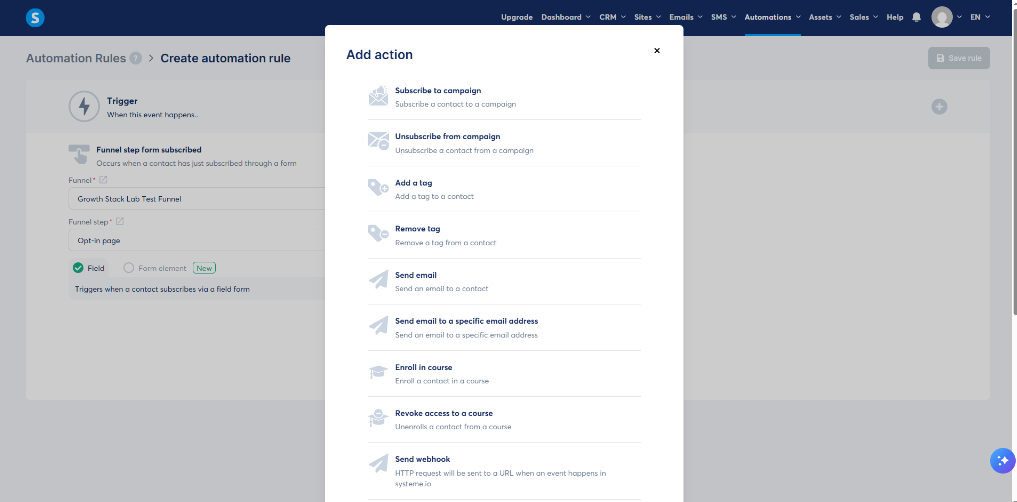
The funnel subscription trigger I tested while reviewing Systeme.io automation.
This test helped me understand the basic logic of the system quickly.
You select a trigger.
Then you tell Systeme.io what should happen next.
For simple automations, that is basically it.
I later used this same trigger in a complete lead magnet funnel test, where the opt-in submission triggered a delivery email, the message reached my Gmail inbox, the PDF link opened correctly, and I verified the unsubscribe status in Systeme.io’s CRM.
For the sending-domain checks behind an automated email, see my Systeme.io email authentication test, which recorded SPF, DKIM, and DMARC PASS for one message received in Gmail.
Automation Rules Are the Simplest Place to Start
For a beginner, I would start with Automation Rules before building larger workflows.
Systeme.io’s rule editor is based on two columns:
Trigger → Action
For example:
Funnel step form subscribed → Send email
Another example might be:
New sale → Add tag
Or:
Tag added → Subscribe to campaign
Systeme.io currently supports these kinds of rules directly inside its automation area, and some rules can also be created from inside the funnel editor. Systeme.io automation rules guide
That makes simple automation relatively easy to understand.
There is no need to build a complex visual flow just to send a welcome email.
For many new solopreneurs, this level of automation may already cover a meaningful amount of repetitive work.
Connecting Funnels to Email Automatically
This is where Systeme.io’s all-in-one approach becomes particularly useful.
A lead can enter through a funnel.
That event can trigger an automation.
The automation can then subscribe the person to an email campaign.
The campaign can begin automatically.
The basic flow looks like this:
Visitor → Funnel form → Contact → Automation → Email campaign
Systeme.io officially supports Funnel step form subscribed as a trigger and Subscribe to campaign as an automation action. Systeme.io campaign automation guide
I like this because it avoids a common problem with separate tools.
If the funnel is built in one platform and email marketing happens somewhere else, those systems usually need to be connected.
Inside Systeme.io, the funnel and email system already belong to the same platform.
For my detailed test of the funnel side, see:
Systeme.io Funnel Builder Review (2026): Is It Good Enough for Solopreneurs?
And for the email side:
Systeme.io Email Marketing Review (2026): Is It Good Enough for Solopreneurs?
Systeme.io Workflows Go Beyond Simple Rules
Automation Rules are useful when the logic is simple.
Workflows are for situations where the customer journey needs multiple steps.
Systeme.io’s current Workflow editor uses a node-based visual canvas.
After a trigger, you can add three main types of steps:
- Action
- Decision
- Delay
An Action makes something happen.
A Decision creates different paths depending on conditions.
A Delay waits before the contact moves to the next step. Systeme.io workflow guide
This opens the door to much more useful automation.
For example:
Lead subscribes
↓
Add “New Lead” tag
↓
Subscribe to welcome campaign
↓
Wait 3 days
↓
Check whether the contact purchased
↓
Yes → Customer sequence
No → Continue follow-up
That is significantly more powerful than a single trigger and action.
A Sample Workflow: Trigger, Tag, Delay, and Campaign
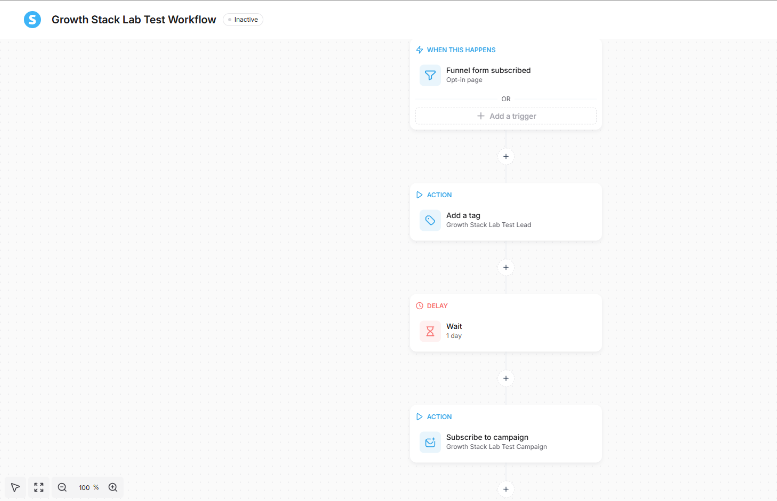
A workflow configured in the editor with a funnel trigger, tag, delay, and campaign. GSL has not verified every step or branch through an end-to-end subscriber test.
What Actions Can Systeme.io Workflows Perform?
Systeme.io’s current Workflow system supports a fairly broad range of actions.
Examples include:
- Send an email
- Subscribe or unsubscribe from a campaign
- Add or remove tags
- Send SMS
- Add a contact to a pipeline stage
- Enroll someone in a course
- Revoke course access
- Grant or revoke community access
- Send a webhook
- Add a row to Google Sheets
This is more functionality than I initially expected from an all-in-one platform focused heavily on funnels and email. Systeme.io workflow guide
For a small online business, these actions can automate several parts of the customer lifecycle.
Decisions Make Workflows More Useful
A linear automation is useful.
A branching automation is much more flexible.
Systeme.io’s Decision step allows a workflow to send contacts down different paths.
Current conditions can include information such as:
- Contact fields
- Tags
- Email activity
- Registration dates
- Contact state
- Activity
Conditions can also be combined into multiple groups. Systeme.io workflow guide
For example:
Has the contact purchased?
If yes:
→ Send customer onboarding.
If no:
→ Continue the sales follow-up sequence.
That makes the system much more useful than a simple autoresponder.
Delays Allow Sequences to Run Over Time
A Delay lets you pause the workflow.
Systeme.io currently allows delays based on:
- Minutes
- Hours
- Days
- An exact date and time
Exact-date delays can also use a specific timezone. Systeme.io workflow guide
This matters because good automation usually should not perform every action instantly.
A simple nurture sequence might look like:
Day 0 → Welcome email
Day 1 → Helpful resource
Day 3 → Product explanation
Day 5 → Follow-up
The delays make that possible without manually scheduling every contact.
Automation Can Respond to Email Behavior
Systeme.io automation is not limited to form submissions and purchases.
It can also respond to email behavior.
For example, the platform supports an Email link clicked trigger.
A simple rule can react when a contact clicks a specific link inside an email.
That could be used to:
- Add a tag
- Start another campaign
- Segment contacts by interest
- Trigger another action
Systeme.io also supports email-click logic inside Workflows, although its documentation notes that selecting a specific individual link is currently more limited there than in simple Automation Rules. Systeme.io email-click automation guide
That distinction is useful to know before building a complicated workflow.
Systeme.io Automation Can Also Handle Course Access
The automation system reaches beyond funnels and email.
Systeme.io currently supports triggers related to:
- Course completed
- Module completed
- Lecture completed
Those triggers can then activate other actions or workflows. Systeme.io course-completion automation guide
For someone selling an online course, this creates interesting possibilities.
A student finishes a course.
Systeme.io can then:
Send a follow-up email.
Add a completion tag.
Move the contact into another sequence.
Offer access to another product.
Again, the value comes from keeping the process inside the same platform.
How Much Automation Do You Get on the Free Plan?
This is where the main limitation appears.
The current Free plan includes:
- 1 Automation Rule
- 1 Workflow
Startup currently increases that to:
- 10 Automation Rules
- 5 Workflows
Webinar:
- 100 Automation Rules
- 20 Workflows
Unlimited:
- Unlimited Automation Rules
- Unlimited Workflows Systeme.io pricing
The Free plan’s one-rule allowance is shared across your processes. If that rule already delivers a PDF, plan how campaign enrollment and file delivery will work together before changing it. See the full capacity breakdown in:
Systeme.io Free Plan Limitations (2026): What Can You Actually Do for Free?
What I Like Most About Systeme.io Automation
The strongest advantage is integration.
The automation system is not isolated.
It can connect with:
Funnels.
Email.
Tags.
Courses.
Communities.
CRM pipelines.
And other Systeme.io tools.
The platform’s official feature documentation describes automation as working across Systeme.io’s product ecosystem rather than requiring an external automation layer for ordinary workflows. Systeme.io feature overview
For a solopreneur, that means fewer connections to maintain.
Fewer integrations to troubleshoot.
And fewer different dashboards to check.
That simplicity is probably more valuable at the beginning than building an extremely complicated automation system.
Where Systeme.io Automation Feels Limited
The obvious limitation is capacity on the lower plans.
One Automation Rule and one Workflow on the Free plan can become restrictive once the business begins automating several processes.
There is also a broader trade-off.
Systeme.io is an all-in-one platform.
It is not a dedicated enterprise automation platform.
A very complex business that depends on extremely advanced data manipulation, sophisticated cross-platform logic, or a huge external integration ecosystem may eventually need specialist automation tools.
But that does not mean Systeme.io’s automation is weak.
It means the system is most compelling when much of the business already runs inside Systeme.io.
Rules vs Workflows: Which Should a Solopreneur Use?
Use a Rule for the form submission that sends a delivery email or enrolls a contact in a campaign. A campaign can contain several timed emails, so a welcome series does not require a Workflow just because it has more than one message.
Use a Workflow when you need a decision between paths, a delay between other actions, or a sequence of actions you want to inspect on the visual canvas. List the required tags and campaigns first so the design fits the capacity available in your account.
Is Systeme.io Automation Worth Using in 2026?
For PDF delivery, the useful result here is the verified form-to-email test. Branching follow-up needs a separate check of each condition, destination, and delivery result before you rely on it. For my broader assessment of the whole platform, see:
Is Systeme.io Worth It in 2026? A Practical Review for Solopreneurs
For the wider setup, the Systeme.io for solopreneurs guide covers how these automation limits fit alongside funnels, email, and courses.
If you are mainly interested in email automation:
Systeme.io Email Marketing Review (2026): Is It Good Enough for Solopreneurs?
And for funnel automation:
Systeme.io Funnel Builder Review (2026): Is It Good Enough for Solopreneurs?
The best way to decide is to build one simple automation around a real funnel and see whether the workflow matches the way you want your business to run.
Affiliate disclosure: If you sign up through this link, Growth Stack Lab may earn a commission at no additional cost to you.