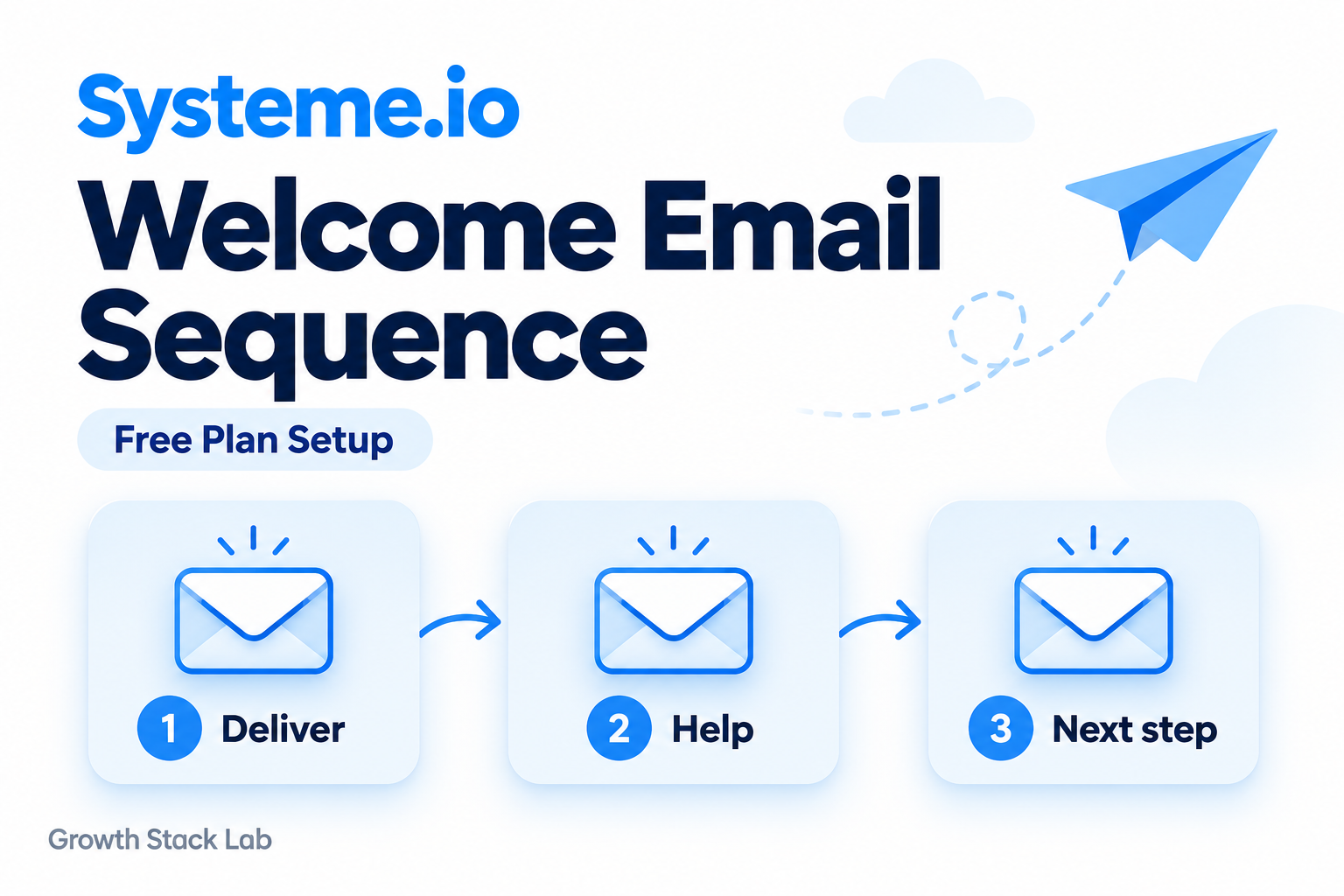
A simple Systeme.io welcome email sequence can help a new subscriber use the resource they requested and decide what to do next. For a first setup, keep the scope small: one audience, one opt-in form, and one campaign containing three useful emails.
This guide explains a proposed configuration using Systeme.io’s official documentation checked on October 5, 2026. Growth Stack Lab has not configured or tested this multi-email sequence. Our separate lead magnet funnel walkthrough documents a working PDF-delivery flow with a single automated email. That experiment does not verify the campaign described here.
The design below is for new subscribers who explicitly agree to the follow-up. It is not a plan to enroll Growth Stack Lab’s existing checklist contacts or a claim that we currently run a newsletter.
Table of Contents
1. Check your available Free plan capacity
The official pricing comparison, checked on October 5, lists these relevant Free-plan allowances:
- Up to 2,000 contacts
- One email campaign
- One automation rule
- Unlimited email sends
- Three funnels with 15 funnel steps in total
This proposed setup uses one campaign and one rule connected to an opt-in page. It does not require a tag or a branching workflow. One campaign can contain a sequence of email steps; the campaign allowance is not a one-email allowance.
Check what your account already uses before creating anything. If your only campaign or rule supports a working process, do not delete it to make room. The Free-plan limitations guide explains the broader capacity decision.
The vendor’s pricing FAQ describes the limits more loosely than its detailed table. Use the table and your account’s actual allowance when planning this setup. Unlimited sends do not remove the campaign or automation limits.
2. Confirm the audience and delivery promise
Write down exactly what the signup offers. Someone requesting a file should not unexpectedly receive a promotional series. Use this design only for subscribers whose signup clearly includes the intended follow-up, and retain evidence of that choice.
For example, a signup form could offer the resource plus two practical emails about using it. State that promise clearly before the person subscribes, then keep the messages within it.
Do not bulk-enroll older checklist contacts simply because their addresses appear in the CRM. Do not override an unsubscribe to make a sequence work.
Also decide which email delivers the resource. In the new-build design here, the first campaign email owns that job. A parallel Send email action containing the same resource could produce an unnecessary second welcome message. An existing delivery flow needs a deliberate transition plan before any change; this guide does not document a tested migration.
Have a ready opt-in page, resource link, and configured sender. For the sender prerequisite, see our domain authentication guide.
3. Plan your Systeme.io welcome email sequence
Prepare all three messages before connecting the signup form. The following is an editorial example, not a proven conversion formula or an existing GSL campaign.
Email 1: Deliver the resource
Suggested subject: Your checklist and where to start
Include the promised download link near the beginning. Briefly explain what the reader will receive next and why it relates to the resource. Avoid making them read a long introduction to find the file.
For a tool-selection checklist, the useful first action could be identifying one business task that currently takes too much time. Keep the email focused on opening the resource and choosing that task.
Illustrative timing: five minutes after campaign enrollment. This is a sample setting, not a guaranteed arrival time. If the form promises instant access, provide a working thank-you-page download rather than depending on that email’s arrival.
Email 2: Help the reader use it
Suggested subject: Choose one task before adding another tool
Give one concrete exercise. For example, ask the reader to list the tools they already use for their chosen task and identify what is missing. Explain that they may discover an existing tool already covers the need.
This message should make the download more useful. It does not need a product pitch or several competing links.
Illustrative timing: one day after Email 1.
Email 3: Offer a relevant next step
Suggested subject: What to set up next
Help the reader make a small decision. Someone without a signup flow could work through a funnel tutorial. Someone with a working flow could check whether their current plan supports the next process they want to build.
Choose one next step that fits the signup promise. Do not insert an unrelated promotion merely because the sequence has reached its last email.
Illustrative timing: two days after Email 2. These intervals are starting assumptions to review against the audience’s expectations, not evidence of an optimal schedule.
4. Create the campaign and message steps
According to the official campaign setup guide, open Emails, select Campaigns, and choose Create. Name the campaign, select the sender address, add a description, and save.
Open the campaign and create its first email. Enter the subject and sender details, then choose an editor and template. Finish and save the content. Repeat for the remaining messages.
Choose your editor before composing: the documentation warns that switching editors loses the content being edited.
Use names that make the sequence easy to inspect later, such as Resource welcome, Apply the checklist, and Choose the next step. Distinct subjects also help you identify the correct message during a future test.
5. Activate the emails and check their order
Saving content does not activate a campaign email. The documented route uses its three-dot menu and Activate to configure sending conditions. For later emails, select the preceding message and set the delay from that message’s delivery.
For the illustrative sequence, use only the simple intervals above initially. Optional time and weekday restrictions add conditions that must also be satisfied. Refer to the activation and timing instructions before combining them.
6. Connect the intended opt-in form
The official campaign enrollment instructions describe a rule using Funnel step form subscribed as the trigger and Subscribe to campaign as the action. Select the intended opt-in page and the campaign you prepared, then save the rule.
Keep an unfinished campaign disconnected from a live signup path. Before saving the connection, inspect the page name, destination campaign, and any existing delivery actions. The thank-you page is not the opt-in page where the subscriber enters their address.
The rule starts enrollment; the campaign holds the email sequence. If you need conditional branches or several entry paths, that is a broader design decision covered by our automation review.
7. Verify the journey before relying on it
Systeme.io’s test-email guide explains Save and test with a verified test address. It also notes that substitution variables are inactive in test emails. A preview can help check the content, but it does not establish that the form enrolls a subscriber or that the sequence follows its intended timing.
Before any real signup test, confirm that it uses a mailbox you control and a path that will not enroll real subscribers accidentally. If your Free-plan capacity cannot safely accommodate a separate test setup, pause rather than repurposing a live campaign without a plan.
Record the following for the full journey:
- The signup event, time, and time zone
- The intended campaign and evidence of enrollment
- Each message’s expected send window and actual receipt time
- The resource link and whether it opens the correct file
- The unsubscribe action and resulting contact status
These are suggested checks. No results have been recorded for this proposed sequence. Avoid shortening delays in a campaign with real subscribers just to finish a test sooner.
If a message is missing, use our emails-not-sending checklist to trace the failure before changing unrelated settings. A successful receipt in one mailbox also does not guarantee future inbox placement.
8. Treat later edits as changes to a live process
A completed sequence still has enrolled contacts to consider. Systeme.io’s campaign scenarios guide says appending a final email can send it to contacts who remain subscribed. If the delay since their preceding email has already elapsed, the new message can become due immediately.
Before adding a follow-up, inspect who may receive it and whether it fits their original signup promise. Do not treat a live campaign as an empty draft simply because its last scheduled message has already been sent.
Frequently asked questions
Can the Free plan support this sequence?
The documented allowances support a simple design using one campaign and one rule, provided that capacity is available in your account. This article is documentation-based; GSL has not tested the proposed sequence.
Do I need a separate rule for every email?
In this design, one rule enrolls the subscriber in the campaign. The campaign contains the individual email steps. There is no reason to create three separate enrollment rules for the three messages.
Can I add existing checklist subscribers?
Do not assume permission from their presence in the contact list. This guide is scoped to new subscribers who agree to the stated follow-up. It does not authorize enrolling GSL’s older checklist contacts.
What if my existing rule already delivers the PDF?
Keep the working delivery process intact until you have reviewed capacity, audience permission, and the transition. Adding campaign enrollment without deciding which email owns delivery can duplicate the welcome. This article is not a verified migration procedure.
Start with one clear subscriber promise
A useful welcome sequence gives readers the resource they requested and helps them take a relevant next step. Prepare those messages first, check capacity, and verify the complete journey before describing your automation as working. Add complexity only when a real reader need justifies it.